
Each stock item can be assigned a waste code. When a stock item with an assigned waste code is serviced, the service receipt will include a duty of care document detailing the waste for that item. This document is also known as a single ticket waste transfer note.
To assign a waste code to a stock item, navigate to the Stock tab in the Stock section.

Next, use the filters on the left to find the stock item for which you want to add the waste code. Then, click the Edit button.
In the Waste Details section, select the appropriate waste code for this item from the dropdown menu.
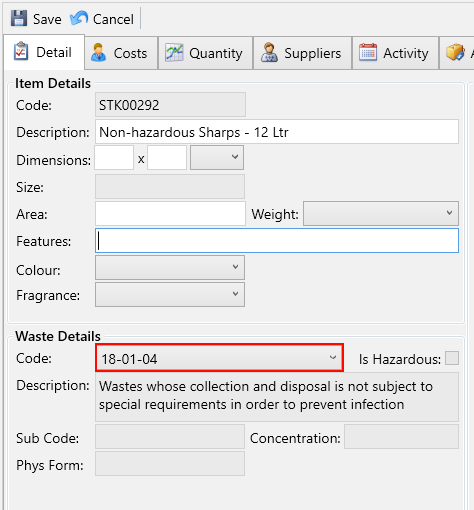
Next, navigate to the Quantity tab and make sure the following fields are configured correctly for this item:
- Unit Quantity – Specifies the volume for each item, which will be used in the waste section of your service receipts.
- Unit Measure – Defines the unit for the specified volume.
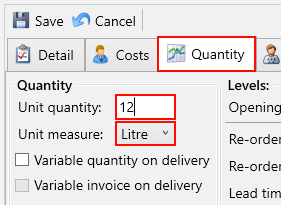
Accurate settings for these fields are crucial for the proper generation of waste documents.
Click the Save button.
From now on, when this stock item is manifested, it will include the new waste details you have entered.