Before you can start using the mobile application you must first create a login. For more information please see the creating a driver login page.
Below walks you through completing a service for a site and capturing the customer’s signature.
1) Open Deliveries
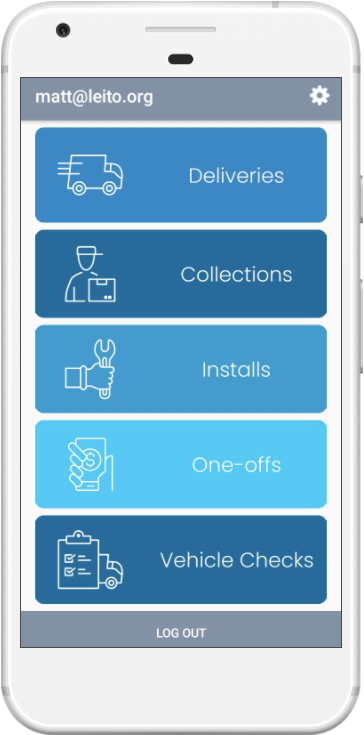
Login to the app and press Deliveries on the home screen.
2) Pick a route
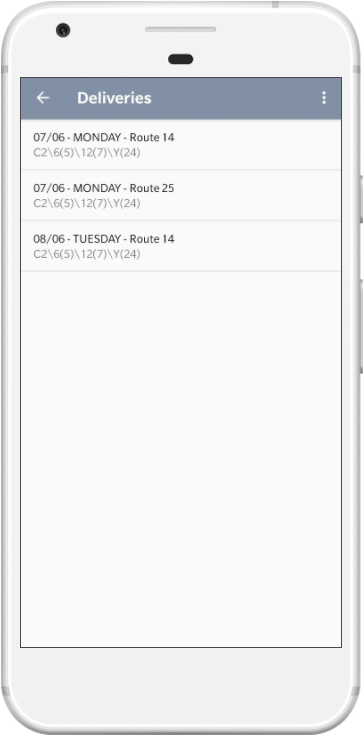
Press a delivery route from the list to start servicing.
3) Pick a site
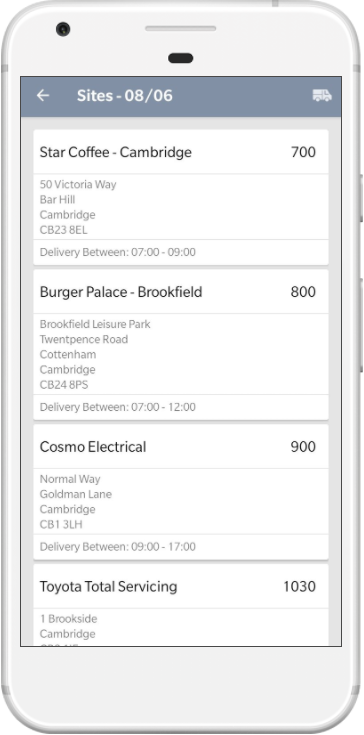
The sites for the delivery route you selected are displayed in the order set on Service Manager Desktop. Press a site to proceed to the site details.
4) View Site Details
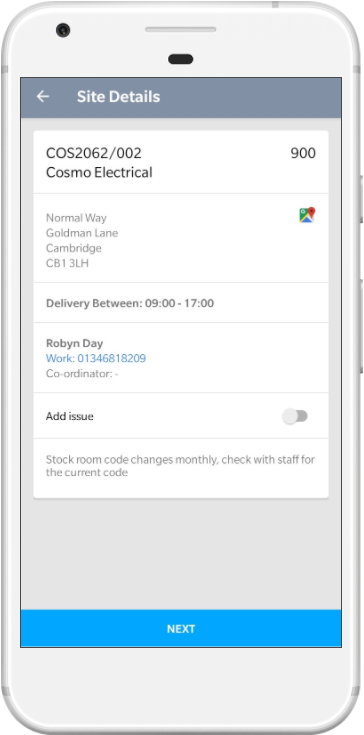
The site details displays the address, special instructions, opening hours and contact details for the site. Press the Next button at the bottom to view Item Totals for this delivery.
5) View Item Totals
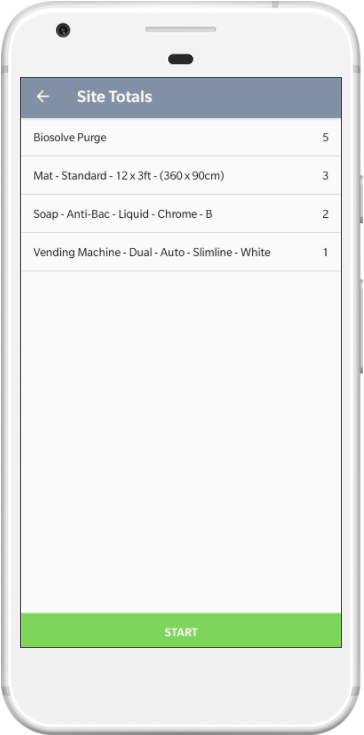
The item totals is a summary of the items being serviced on this delivery, you can use this to load any items or equipment that you need off the van. When you’re ready press Start at the bottom which will stamp the current
time as the start time for this delivery.
6) Action Items
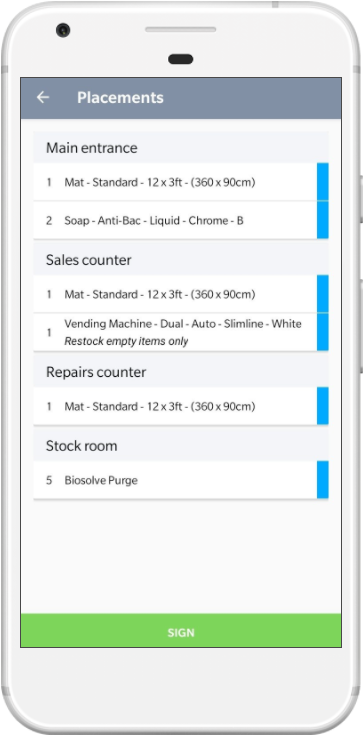
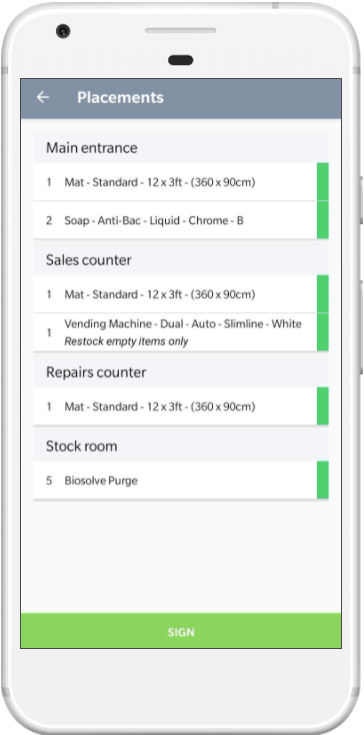
The items are shown in the placement order for this site. To mark an item as completed, press it once which will change the colour from blue to green.
7) Proceed to sign
Once all items are actioned, press the Sign button at the bottom to capture a signature for this delivery.
8) Get a signature
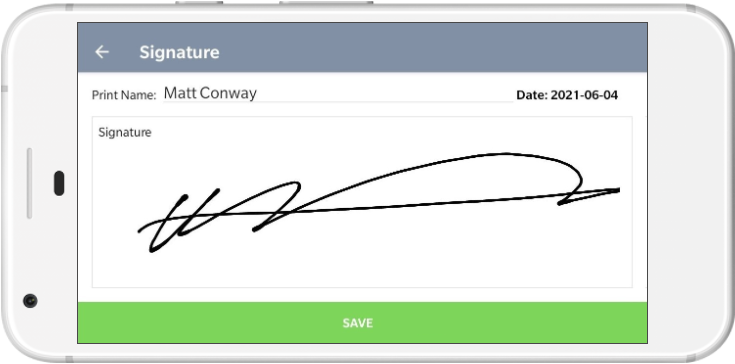
Enter the signee name and record their signature if required. Click Save.