
When a driver reports an issue on the mobile app, those issues must be resolved. You can choose to view only unresolved issues or view all issues to review past history if needed.
Viewing unresolved issues
Navigate to the Unresolved Issues tab under the Manifesting section.

Use the filters on the left to narrow down the unresolved issues you wish to review. By default, the filters display all unresolved issues for today.
Viewing all issues for a date range
Navigate to the Manifest (Site) tab under the Manifesting section.

Using the filters on the left and set the Has Issue filter to Yes. Combine this with other filters to focus on the issues you want to review, including both resolved and unresolved ones.
Viewing all issues for a specific site
Navigate to the Site Delivery tab under the Customers section.

Use the filters on the left to find the site for which you wish to view delivery issues. Then, select the Issues tab.
By default, the Issues tab displays only unresolved issues for the selected site. However, you can use the dropdown menu on the right to view all issues if needed.

Viewing reports for Delivery Issues
Use the Reports menu on the main toolbar and expand the Delivery Issues node.
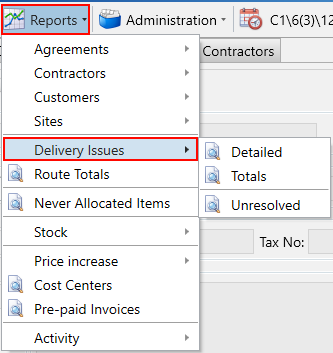
Upon selecting an option, you will encounter a date picker to choose the dates for viewing issues. The various reports are explained below:
- Detailed – This report breaks down each individual placement item with an issue within the specified dates.
- Totals – A total summary of the issues, breaking down the number of issues occurred each day, by reason, and per driver within the specified dates.
- Unresolved – This report breaks down each individual placement item with an unresolved issue within the specified dates.