
When managing customer agreements, there may be occasions when you need to adjust the next invoice date. This might be necessary if a customer requests to align their invoices to a specific date, like the 1st of each month, or if they want to change their billing frequency.
Changing the invoice date from the agreements screen
Navigate to the Agreements tab under the Customers section.

Next, use the filters on the left to find the agreement for which you wish to amend the invoice date. Then, select the Amend Invoice Date option from the Options menu.
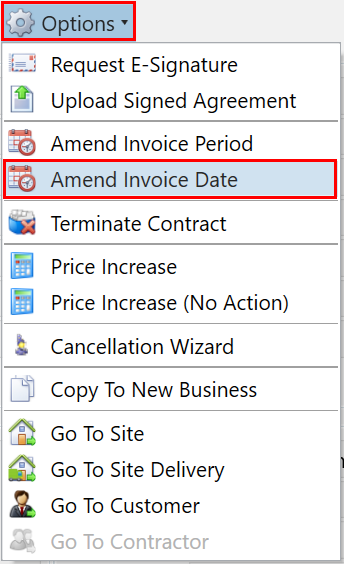
In the popup, select a date from the calendar, this will become the new Next Invoice Date for this agreement and the service dates will be set accordingly.
When you have selected your new date, click Ok.
Changing the invoice period from the agreements screen
Navigate to the Agreements tab under the Customers section.
Next, use the filters on the left to find the agreement for which you wish to amend the invoice period. Then, select the Amend Invoice Period option from the Options menu.
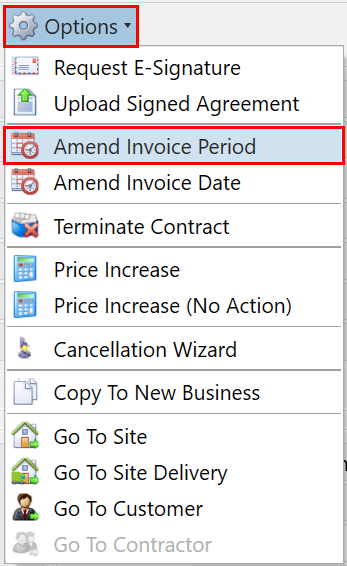
In the popup, select a date from the calendar and select the new invoice period from the dropdown. The selected date will become the Next Invoice Date for this agreement and the service dates will be set according to the period you select.
When you have selected your new details, click Ok.
Changing the invoice date from the accounts screen
Navigate to the Account tab under the Finance section.

Next, use the filters on the left to find the account for the agreement that you wish to amend the invoice date on. Then, select the Account Codes tab.
Select the account code your agreement is on in the grid, and select the agreement you wish to amend in the bottom grid. Then press the Amend Invoice Date button.
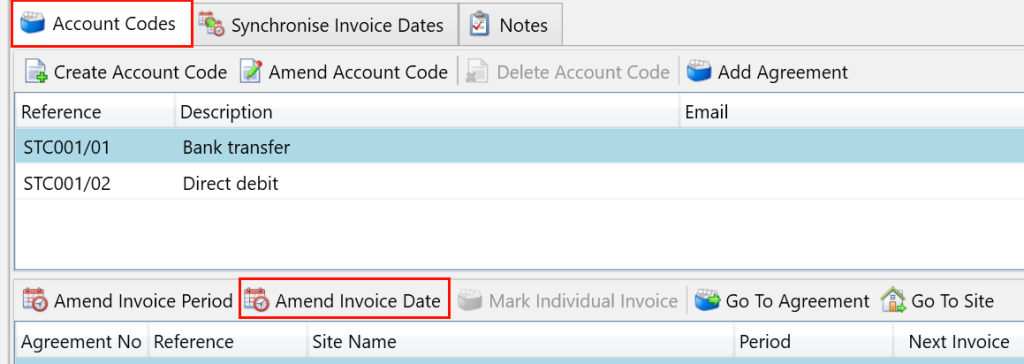
In the popup, select a date from the calendar, this will become the new Next Invoice Date for this agreement and the service dates will be set accordingly.
When you have selected your new date, click Ok.
Changing the invoice period from the accounts screen
Navigate to the Account tab under the Finance section.
Next, use the filters on the left to find the account for the agreement that you wish to amend the invoice period on. Then, select the Account Codes tab.
Select the account code your agreement is on in the grid, and select the agreement you wish to amend in the bottom grid. Then press the Amend Invoice Period button.
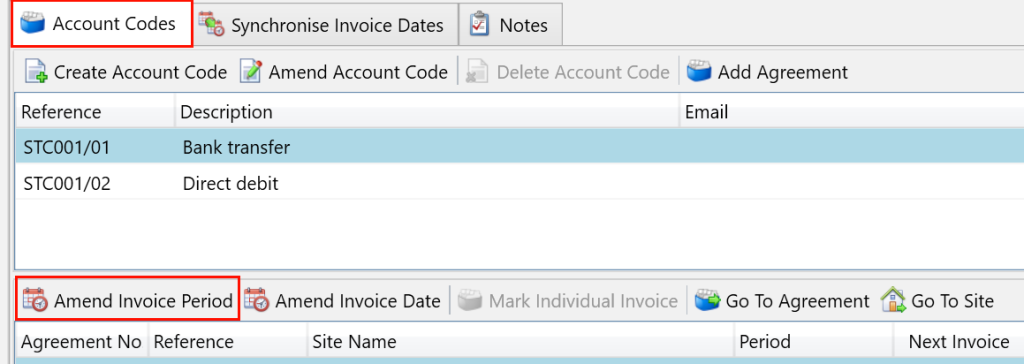
In the popup, select a date from the calendar and select the new invoice period from the dropdown. The selected date will become the Next Invoice Date for this agreement and the service dates will be set according to the period you select.
When you have selected your new details, click Ok.