
A price rule allows you to define a default price for specific stock items on a specific frequency across a whole company.
Creating a price rule
Navigate to the Custom Pricing tab under the Stock section.

Select the New button.
In the popup select the company that you want to add the price rules for, then press the Ok button. The reference and name of the company you selected will be filled out for you, enter a description for the price rule and then press Save.
Select the Stock Rules tab, then press the Add Rule button.

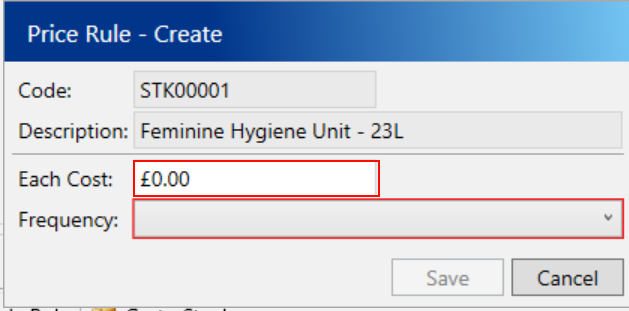
In the popup select the stock item that you want to add the price rule for, then press the Ok button. Enter the each cost and select the frequency for this item and then press Save.
Matching items for the company you selected will be displayed at the bottom, you can add as many price rules for the company as you want to.
Adding a price rule item to an agreement
Navigate to the New Agreement tab under the Customers section.

Next, use the search filters on the left to find the new agreement you want to add the items to or create a new one.
Select the Items tab, then select the Add Item button and choose the appropriate option for your stock item.

In the popup select the price rule that you want to add to this agreement, then press the Ok button. The stock item, frequency and each cost will be filled out for you from the price rule you selected. Fill out the remaining details for this item and then press Save.
Applying the rule to existing items
Navigate to the Custom Pricing tab under the Stock section.
Next, use the search filters on the left to find the new agreement you want to add the items to or create a new one.
Select the Stock Rules tab, then select the rule that you want to apply or create a new one.

You will be prompted if you are you sure you want to apply the rule, select Yes.
All matching agreement items will be set to match the each cost set on the rule.
Video walkthrough
For a full video walkthrough on price rules please see the video below: