
There will be times when you want to replace a stock item with another one but you don’t want to go through all the agreements one by one. The replace item feature can do all of this for you in one go.
Navigate to the Stock tab under the Stock section.

Then, use the search filters on the left to find the stock item that you want to be replaced by another one.
Select the Replace Item button

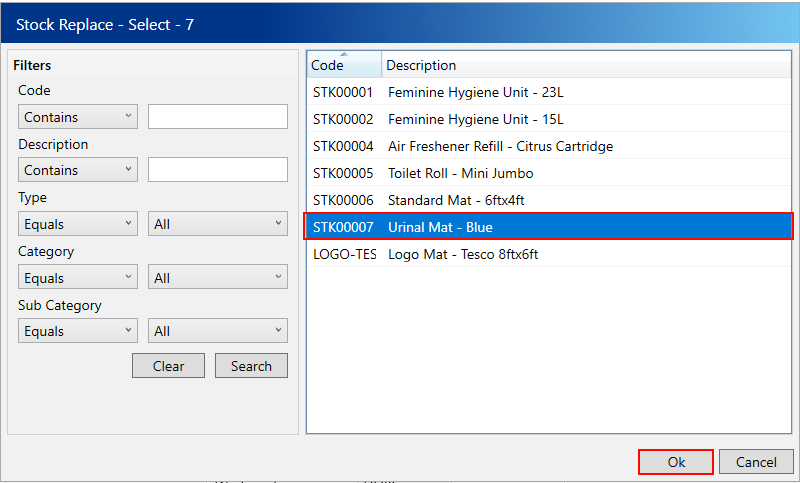
In the popup, select the stock item that you would like to use as the replacement then select Ok.
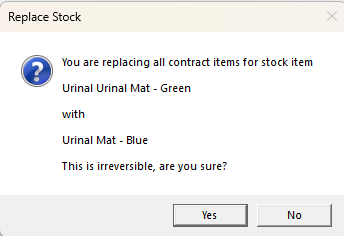
You will be asked if you are sure you want to proceed, select Yes.
The stock item you replaced will now be marked as inactive and all agreement items will have been updated to the new item.