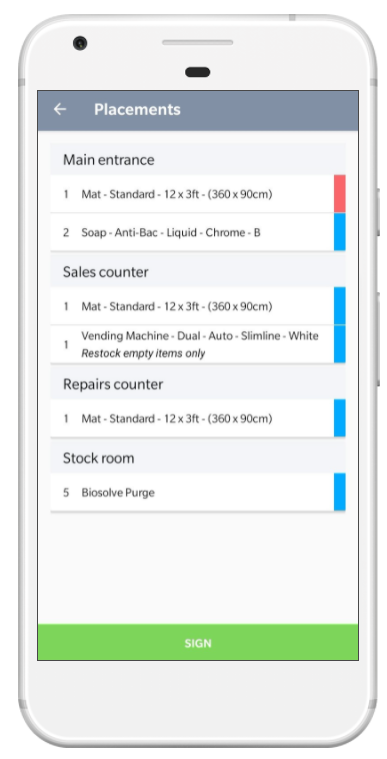
Each item on the mobile app can have an issue reported against it, these will then be visible back in Service Manager Desktop to be resolved.
1) Press Item
From the items screen, press the item you want to add an issue for twice.
This will change the colour from blue to green and then subsequently to red.
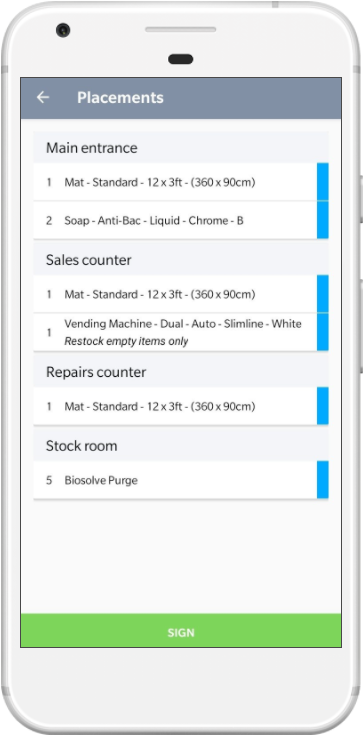
This will change the colour from blue to green and then subsequently to red.
2) Enter Issue
Select an issue from the dropdown and enter any additional notes.
Press the tick icon in the top right of the screen to save the issue.
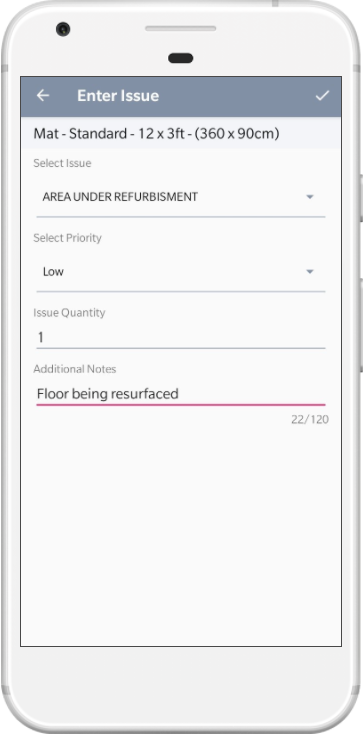
Press the tick icon in the top right of the screen to save the issue.
3) Issue Displayed
The item will now have changed from green to red. Action any remaining items and then press Sign