
You can add as many different routes as you need and they can be created in the Scheduling area.
- From the Home page, choose Deliveries and then Scheduling
- Click on the Routes tab
- Click New
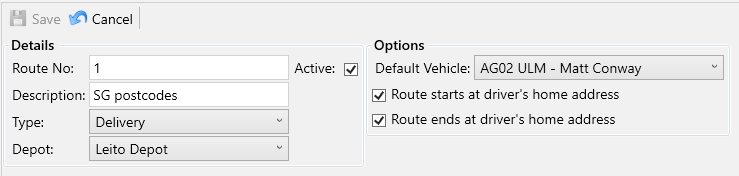
- Enter a Route No, this will appear on the manifest reports and Service Manager Mobile
- Enter a Description for this route
- Select a Route Type from the dropdown.
- Delivery – These routes will get manifested.
- Scheduling – These routes are purely for scheduling purposes and do not get manifested.
- Select a Depot from the dropdown, or leave it blank if this route isn’t related to a depot.
- Select a Default Vehicle from the dropdown, the Default Driver for the vehicle will be the default driver for this route and the name of the driver is shown alongside each vehicle in the dropdown:
- Use the checkboxes to select whether this route should use driver’s home address as the start and/or end point when using the Route Optimisation tools.
- Click Save
Your new route will be displayed and is ready to be used.