
This article provides a guide on how to manage schedules within Service Manager.
Drivers
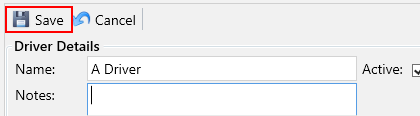
If you have not done so already you will need to create a driver to allocate to a schedule. You can do this from the Drivers Tab under Scheduling.

In the details window click the New button

Enter the following compulsory fields:
- Name – Enter the drivers name
- Email – The email address the driver uses to sign onto the mobile application
- Postcode – The drivers home address postcode. used in route optimisation if the driver starts round from their home address
Click the Save Button
Vehicles
You are able to add as many vehicles as you want to Service Manager, each vehicle can be allocated to a Default Driver and every route must have a Default Vehicle.
- On the Home page, choose Deliveries and then Scheduling
- Click on the Vehicles tab
- Click New
- Enter the vehicle’s registration number
- Assign a driver to this vehicle by selecting a Default Driver from the dropdown
- Pick a Vehicle Type. This will be used for checking load weights
- Click Save
Your new vehicle will be displayed and is ready to be used.
Create a route
You can add as many different routes as you need and they can be created in the Scheduling area.
- From the Home page, choose Deliveries and then Scheduling
- Click on the Routes tab
- Click New
- Enter a Route No, this will appear on the manifest reports and Service Manager Mobile
- Enter a Description for this route
- Select a Route Type from the dropdown.
- Delivery – These routes will get manifested.
- Scheduling – These routes are purely for scheduling purposes and do not get manifested.
- Select a Default Vehicle from the dropdown, the Default Driver for the vehicle will be the default driver for this route and the name of the driver is shown alongside each vehicle in the dropdown:
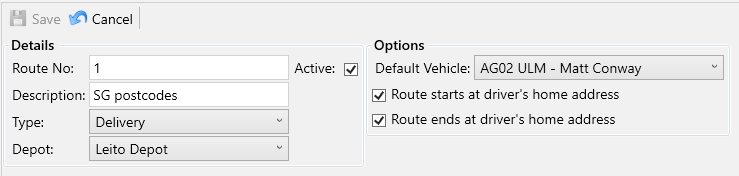
- Use the checkboxes to select whether this route should use driver’s home address as the start and/or end point when using the Route Optimisation tools.
- Click Save
Your new route will be displayed and is ready to be used.
Delivery Periods
Service Manager provides you with the following default delivery periods:
- Weekly
- Fortnightly
- Monthly
- 6 Weekly
- 8 Weekly
- 12 Weekly
- Yearly
You can allocate jobs using any combination of these periods. For example you might have a site that requires you to visit weekly to service one item and another item that requires you to service once a month.