
When an item is being cancelled, you may need to collect it from site if the equipment still belongs to you. You can schedule a collection when you’re scheduling the cancellation itself, or at a later date before the cancellation is completed.
To arrange when scheduling the cancellation
Navigate to the Agreements tab under the Customers section.

Next, use the filters on the left to search for the agreement with the items you want to cancel. Then, select the Items tab.
In the Items tab, right-click on the item you wish to cancel, and select “Cancel Item” from the menu.
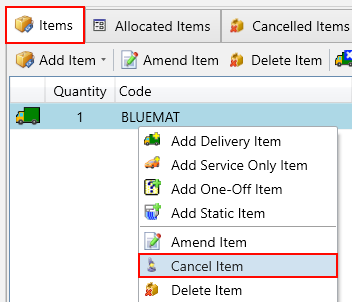
You will see the Cancellation Wizard popup with the selected item already marked for cancellation. Enter a termination date and choose a cancellation reason, then click Next.
On the following page, review the overview of the items being cancelled and click Next.
You will now be on the Collections page, select the items for which you wish to schedule a collection, and click the Amend Collection button on the toolbar.
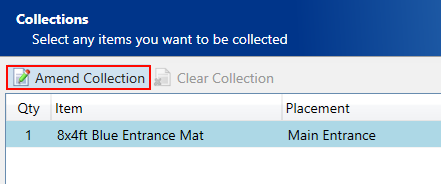
Next, you will see the collection popup with the selected items displayed at the bottom.
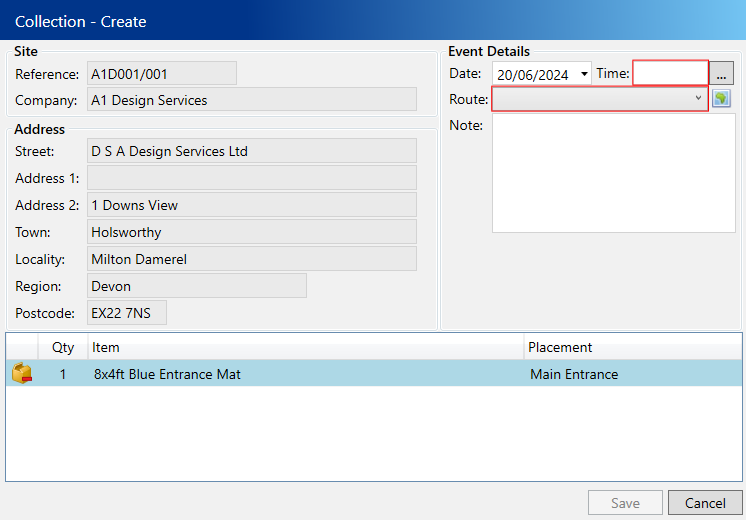
Enter the following compulsory fields:
- Date – The date you intend for the item to be collected, which defaults to today.
- Time – The specific sequence on the selected date/route for collected this item.
- Route– The designated route for collecting the item on the specified date.
Click the Save button
The collection details you provided will now appear on the collections page. Click Next to proceed to the final page of the wizard, and then click Finish to confirm the cancellation request and schedule your collection.
To arrange after the cancellation is already scheduled
There may be occasions when a cancellation is scheduled far in advance, and you are uncertain about which driver will be available to perform the collection. In this scenario, you would proceed with scheduling the cancellation as usual and then arrange the collection closer to the cancellation date.
Navigate to the Pending Cancellations tab under the Customers section.

Next, use the filters on the left to search for the cancellation for which you want to schedule the collection. Then, select the Items tab.
In the Items tab, right-click on the item for which you want to schedule a collection, and choose “Add Collection” from the menu.
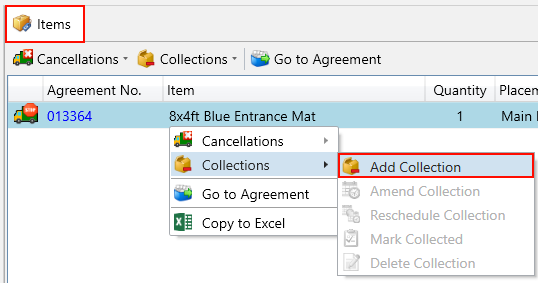
Next, you will see the collection popup with the selected items displayed at the bottom.
Enter the following compulsory fields:
- Date – The date you intend for the item to be collected, which defaults to today.
- Time – The specific sequence on the selected date/route for collecting this item.
- Route– The designated route for collecting the item on the specified date.
Click the Save button