
There will be occasions when you need to invoice a customer for something that isn’t directly related to a prior agreement. This might include ad-hoc services you provided or an additional service requested during a busy period.
To create a manual invoice, navigate to the Invoices tab under the Finance section.

Next, press the New button.
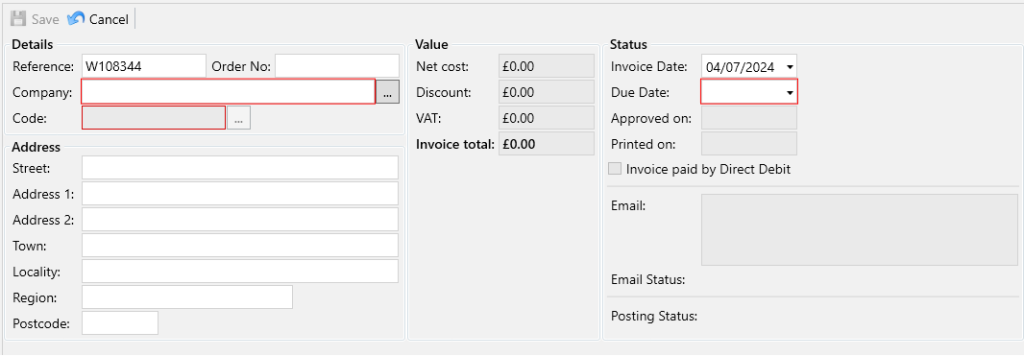
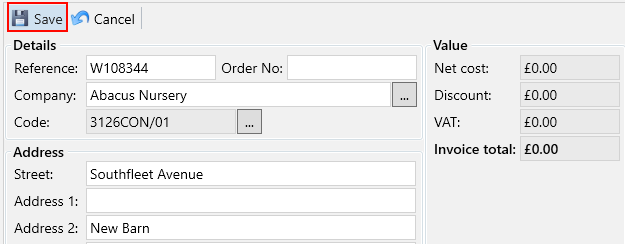
A reference will be generated for you, fill out the compulsory fields:
- Company – This is the account you wish to invoice. Use the search button to choose an account from the popup window.
- Code – Once you have selected an account, you can use the search button to select an account code from that account for this invoice.
- Due Date – After selecting your account, this will default based on the details from the selected account using the Invoice Date. You can still make changes to this date if needed.
The address will automatically populate once you select an account, but you can still modify it if necessary.
Next, click the Add Site button and choose a site that you wish to include on this invoice. Only sites associated with the selected account will be displayed. You can add multiple sites to this invoice if you need to invoice more than one at a time.
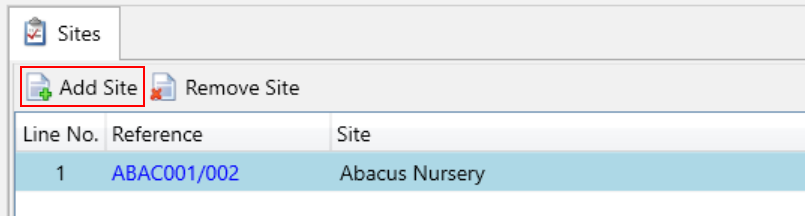
After adding your site, use the Add Item button to select items you wish to include for that site on this invoice. Once you select an item, it will appear in the grid. Each site listed on the invoice has its own set of items.
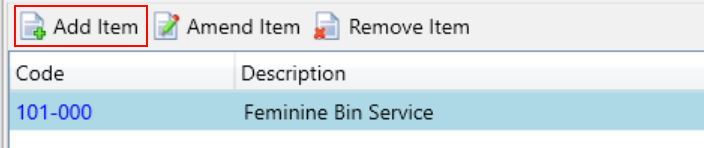
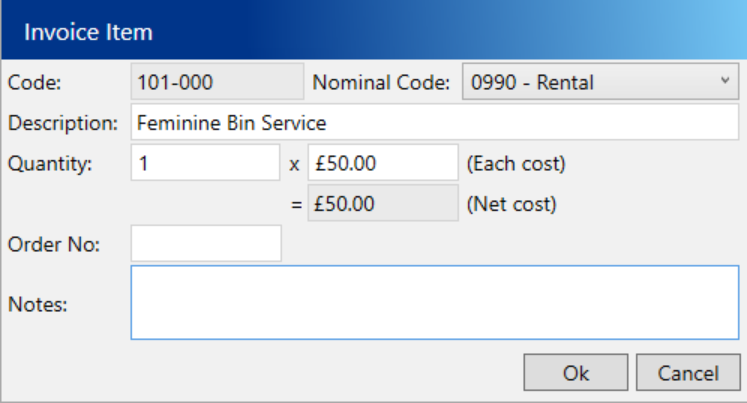
You can double-click the item to open a popup where you can adjust the quantity, unit cost, and description as needed.
When you have added all of your sites and items, click the Save button at the top of the screen.
Your invoice is now ready to be emailed out to your customer and/or posted to your accounts package.
A complete video walkthrough of creating a manual invoice can be found below: