
Maintaining stock is crucial for efficiently servicing your sites. You can monitor stock levels for each item and decide whether the quantity is reduced during service, installation, or collection. Furthermore, each stock item can have a designated re-order level, enabling you to identify when it is classified as “low stock.”
Video walkthrough
We have a complete video guide for tracking stock levels in the video below:
Setting a re-order level
To set a re-order level, navigate to the Stock tab under the Stock section.

Next, use the filters on the left to find the stock for which you want to add a reorder level. Then, click the Edit button.
Select the Quantity tab and enter the re-order level.
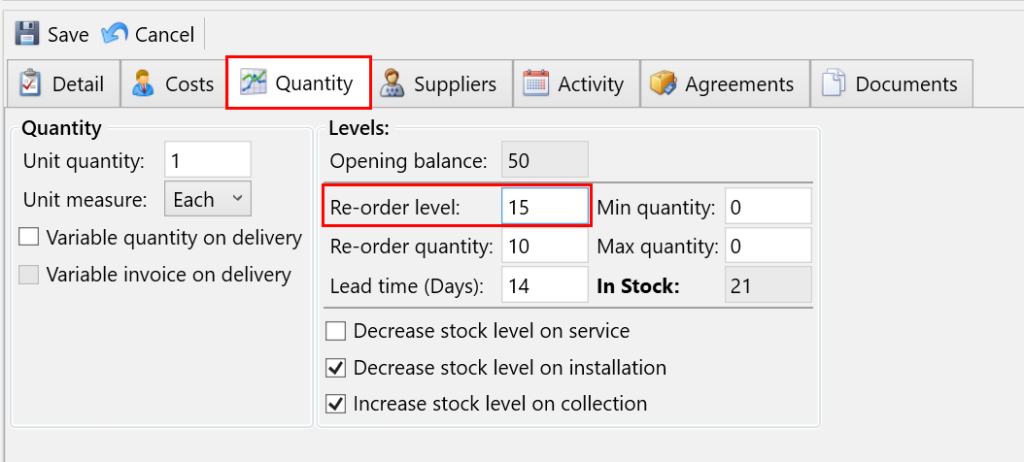
When you have entered your Re-order level, press Save.
Marking a stock item to track stock level on service, install and collection
To begin tracking stock quantities and adjusting in-stock levels, you need to specify whether the stock items decrease during service or installation, or increase during collection.
Navigate to the Stock tab under the Stock section.
Next, use the filters on the left to find the stock for which you want to amend. Then, click the Edit button.
Select the Quantity tab and use the checkboxes to choose how this stock item should adjust in-stock levels:
- Decrease stock level on service – This will reduce the in-stock quantity for this stock item whenever this item is serviced as part of a regular delivery, a one-off delivery or as a re-visit.
- Decrease stock level on installation – This will reduce the in-stock quantity for this stock item for an installation.
- Increase stock level on collection – This will increase the in-stock quantity for this stock item for a collection.
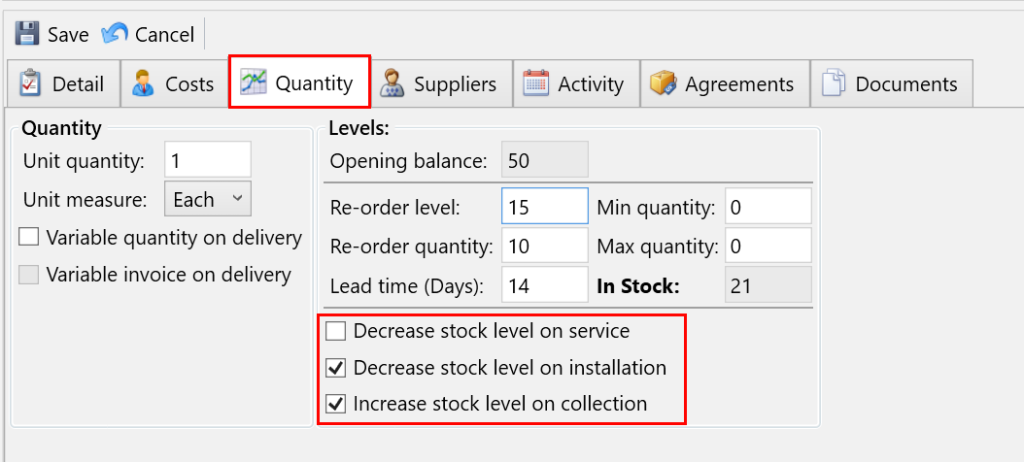
When you have selected your options using the checkboxes, click Save.