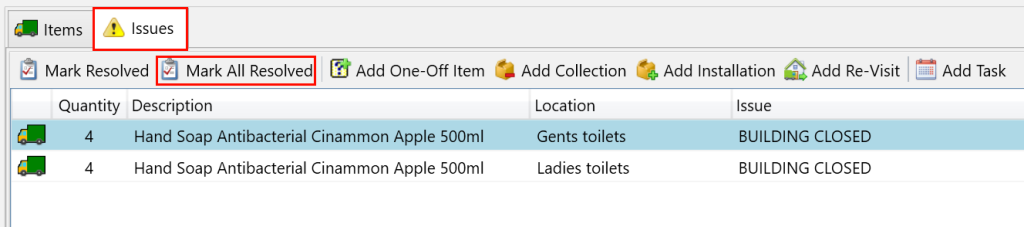
You may encounter situations where you’ve already created your manifest, and then a site informs you that they’re closed. In such cases, you would only want to adjust this particular job without impacting the other jobs on the manifest. We would also want to keep a record that the site was closed on this day for future reference.
Navigate to the Manifest (Sites) tab under the Manifesting section.

Next, use the filters on the left to search for the site delivery that you want to record as closed.
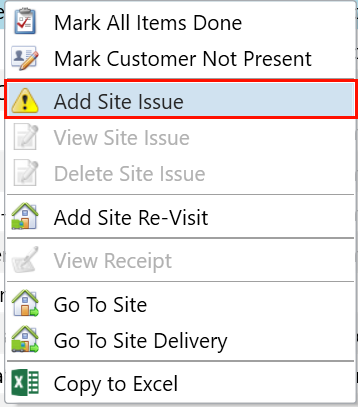
Then, right-click the site delivery in the grid and select the Add Site Issue option from the menu.
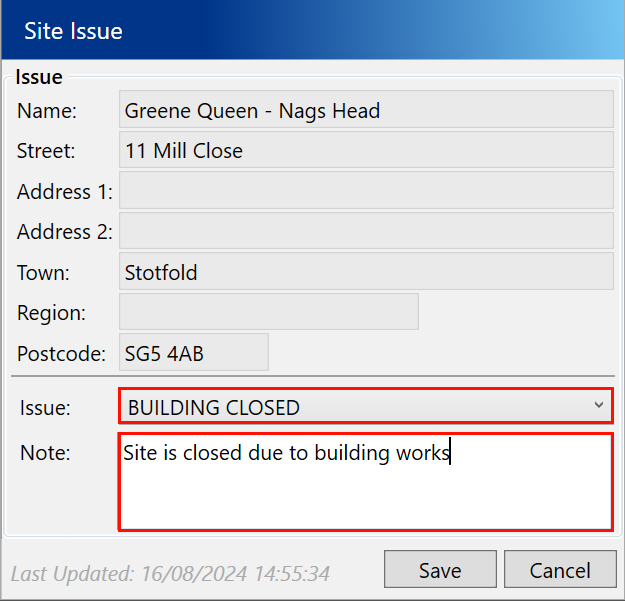
In the popup, select an issue reason and enter a note for your own records. Then, click Save.
Now that you have recorded the site issue, the driver’s mobile app will display the delivery with a red tick displayed so they know a site issue has been recorded.
Next, select the Issues tab in the bottom half of the screen. The items that were scheduled for this delivery will be displayed in the grid.
If the customer is notifying us in advance of the closure then we may not need to reschedule this delivery to a different date, in that case we can click the Mark All Resolved button to immediately resolve these recorded issues.