
There will be instances when you need to reschedule a specific job on a driver’s route, either to a different date or to a different driver on the same date. For example, if a site is closed for maintenance on a particular date, you may need to move the job to the following day.
Navigate to the Manifest (Site) screen under the Manifesting section.

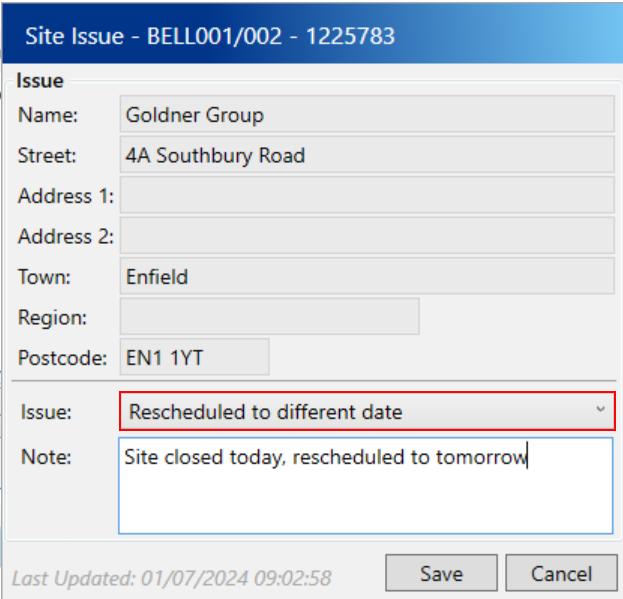
Use the filters on the left to find the job you want to move. Right-click the job in the top grid and choose “Add Site Issue” from the menu. In the popup window, select an issue from the dropdown menu and optionally enter a note. Then, click the Save button.
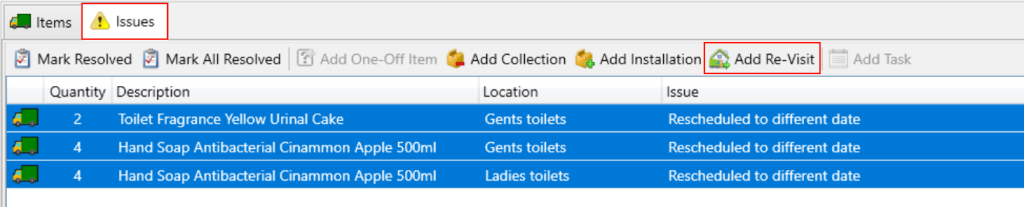
With your job still selected in the top grid, change to the Issues tab at the bottom of the screen. You will see all of the items for the job displayed, select them all and then press the Add Re-Visit button.
You will then be shown the delivery event popup with the items you selected display at the bottom.

Enter the following compulsory fields:
- Date – The date you intend for the item to be delivered, which defaults to today.
- Time – The specific sequence on the selected date/route for delivering this item.
- Route– The designated route for delivering the item on the specified date.
Click the Save button. When prompted to mark the issues as resolved, select Yes.
Now, each item displays a resolution event beneath it, providing a complete history of the reschedule.
