
A stock take is essential for recording how many of each item you currently have in stock and keeping a record of that at a certain point in time. You can perform a stock take on any item even if stock levels for that item are not being tracked on service, install and collection.
To record a stock take on an item
Navigate to the Stock tab under the Stock section.

Next, use the filters on the left to find the stock item for which you wish to perform a stock take.
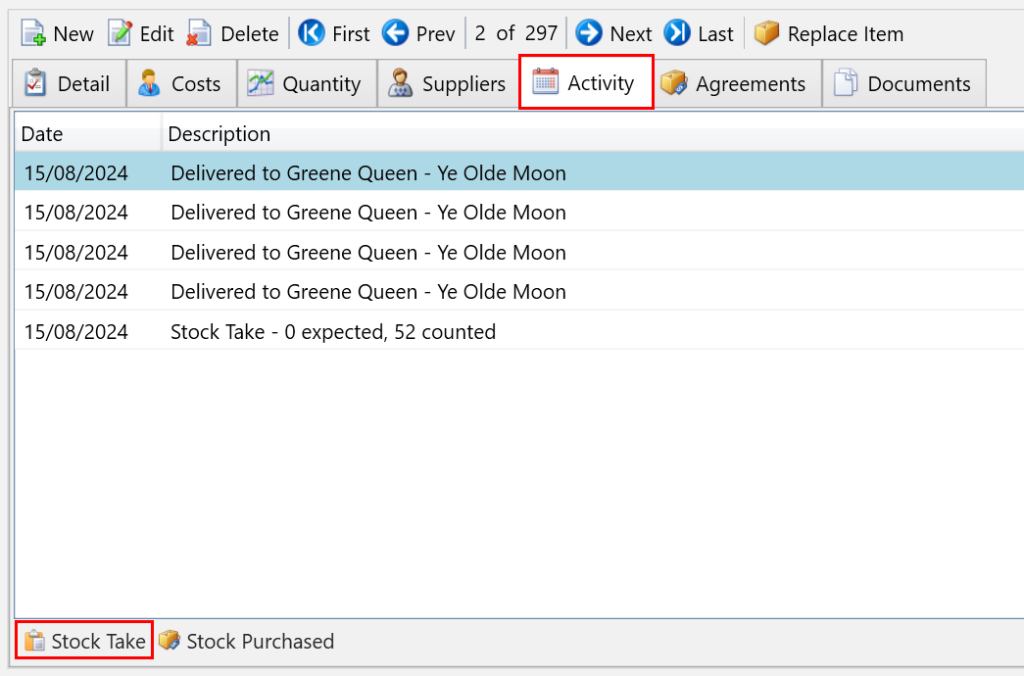
Then, select the Activity tab and press the Stock Take button.
In the popup, select the date the stock take was performed and the quantity counted. The currently recorded in stock amount is also shown as the expected quantity.
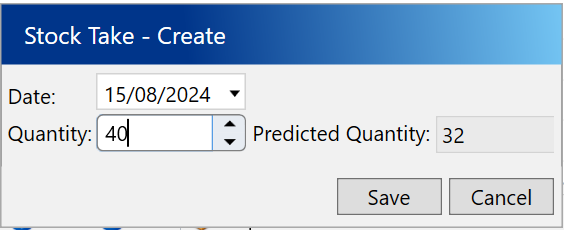
Once you have entered the details, click Save.
Viewing the stock take report
You can find the Stock Take report by searching for it on the Reports screen from the main toolbar.
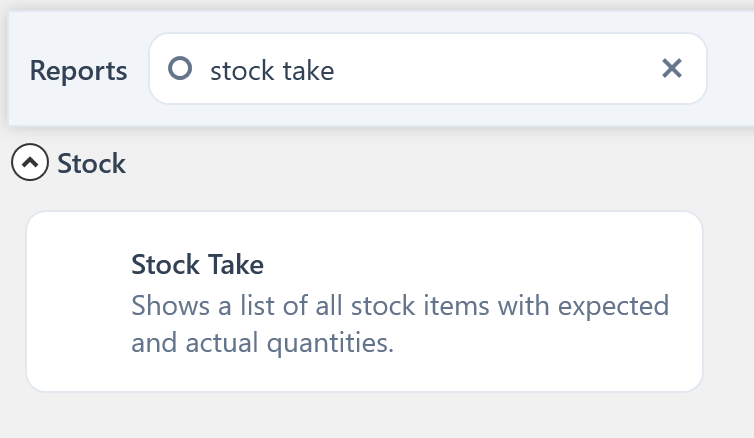
The report will list all active stock items, showing the currently recorded in-stock amount as the expected quantity. The report will be organized by subcategory.