
If you have already added a delivery event such as a collection, installation, re-visit, or one-off, you can still reschedule it to a different date and/or driver.
Navigate to the Delivery Events tab under the Manifesting section.

Next, use the filters on the left to locate the delivery events you want to reschedule. In the grid, choose the site where you want to make changes. Then, in the Event Items tab, select the items you wish to reschedule and click the Reschedule Event button. You can choose to reschedule some or all of the items.
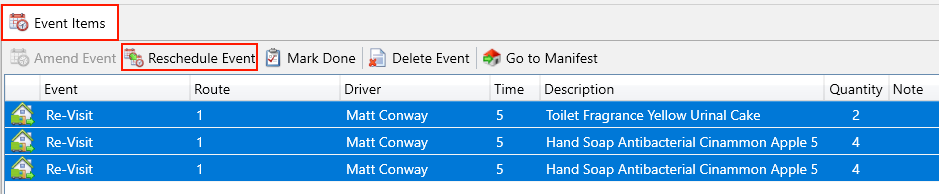
You will see a prompt informing you that rescheduling events will impact the manifest. Press Yes to continue. Then, you will be shown the delivery event popup with the items you selected display at the bottom.

Enter the following compulsory fields:
- Date – The date you intend for the item to be delivered, which defaults to today.
- Time – The specific sequence on the selected date/route for delivering this item.
- Route– The designated route for delivering the item on the specified date.
Click the Save button.