
Suppliers are managed through the Stock section, which allows you to record supplier details and link them directly to individual stock items. Once a supplier is added, you can use their details when creating purchase orders and managing pricing against stock.
Table of Contents
Register a New Supplier
To create a new supplier:
- From the main page, go to Stock.
- Select the Suppliers tab.
Enter Supplier Details
- Search for Address – Use the address lookup to auto-fill the supplier’s address details.
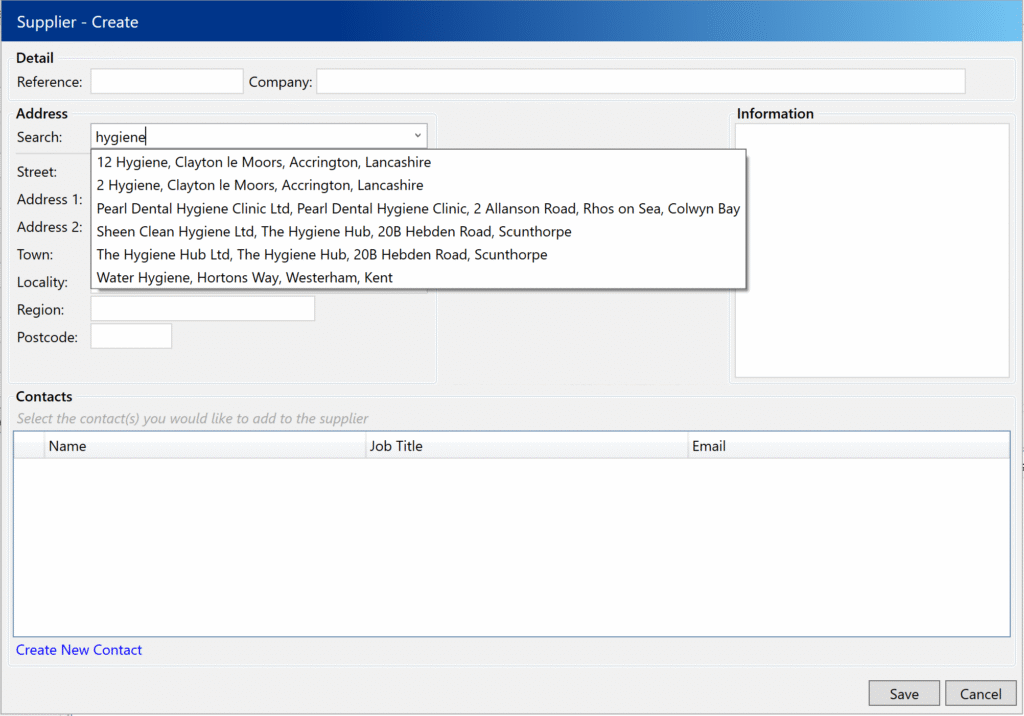
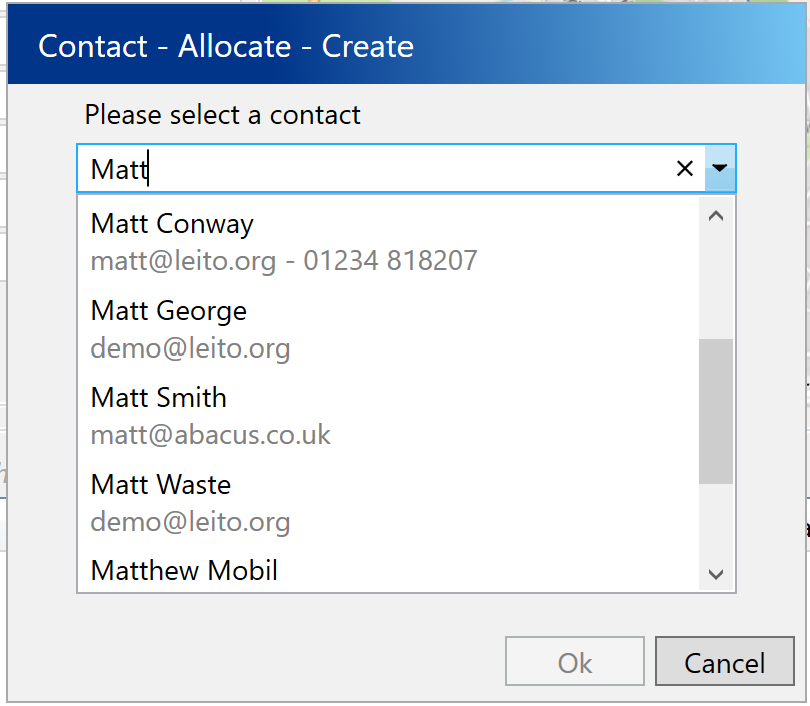
- Add Contacts – Click Add Contact to either:
- Enter a new contact manually
- Use Search Existing Contacts to select an existing one
Final Steps
- Complete the rest of the supplier details as required.
- Click Save.
Your new supplier will now appear in the list and can be used immediately for stock purchasing.
Add a Supplier to a Stock Item
To associate a supplier with an existing stock item:
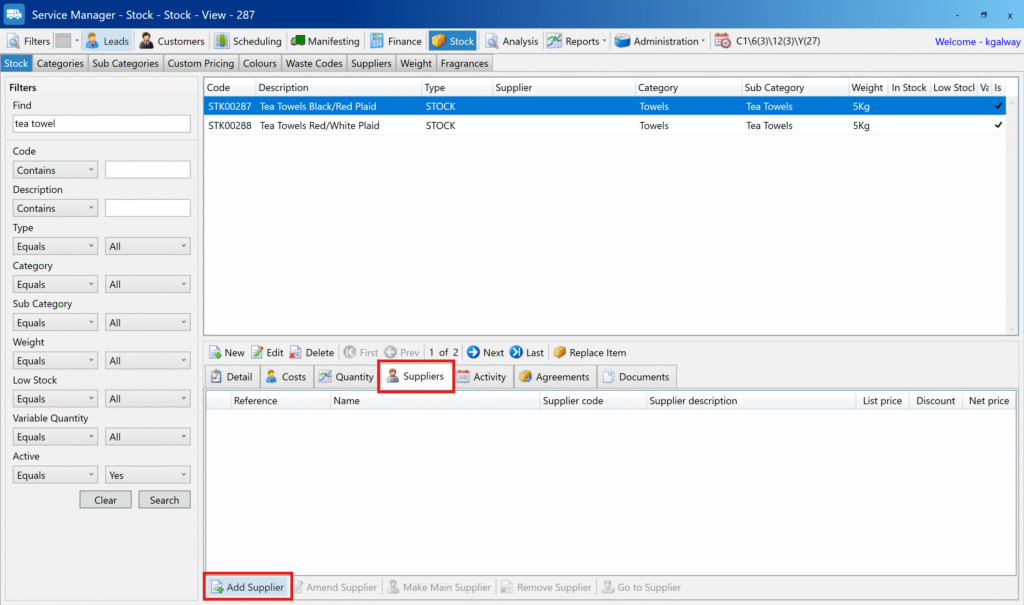
- From the main page, go to Stock.
- Use the search to find the stock item.
- Select the item from the results grid.
- Go to the Suppliers tab in the bottom panel.
- Click Add Supplier.
Link a Supplier
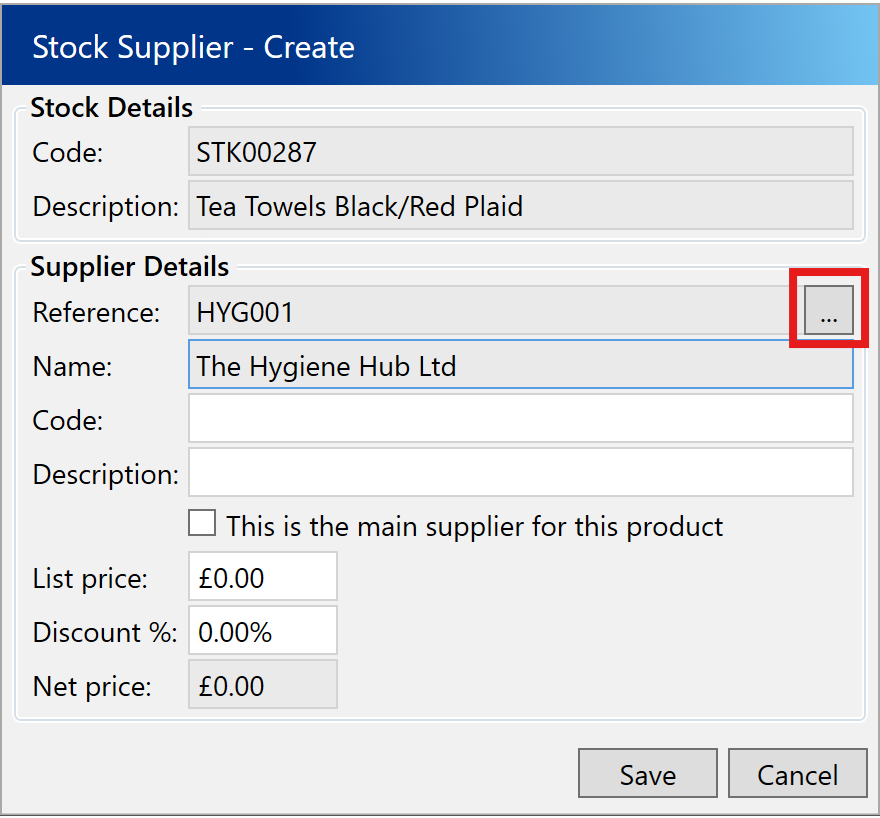
- In the popup, click the three dots to search.
- Locate the supplier from the search grid and click OK.
Enter Product Details
Fill in (optional):
- Supplier’s product code
- Product description
- List price
Final Step
- Click Save.
The supplier is now linked to this stock item and available when creating purchase orders.