You can complete a vehicle check for every vehicle you use on a given day. If you have no deliveries for today, the vehicle checks area will be empty.
Below walks you through completing a vehicle check on the mobile app.
1) Open Vehicle Checks
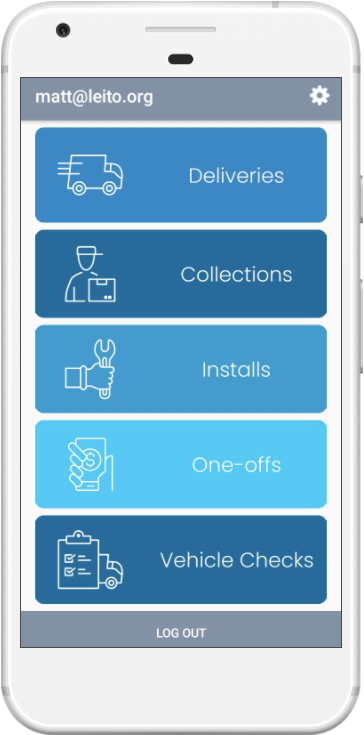
Login to the app and press Vehicle Checks on the home screen.
2) Vehicle Selection
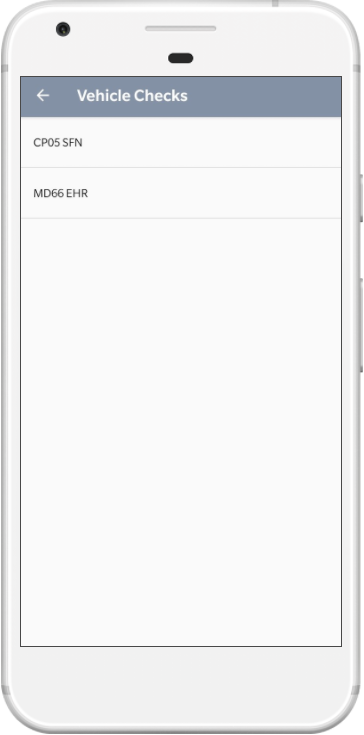
If you are assigned to more than one vehicle for the day, you will need to perform a check for each one. This step will be skipped if you only have one vehicle for a day.
3) Checklist
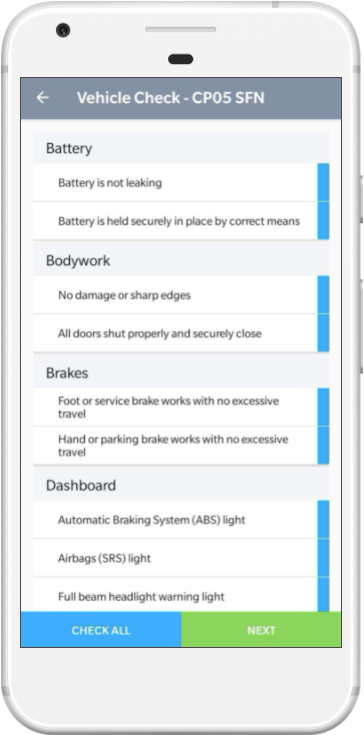
Complete all of the shown vehicle checks exactly as you would one of your deliveries by pressing each item.
If there is an issue with something on the vehicle and you need to report an issue for it, press the item twice to add an issue; exactly the same as you would for an item. For more information on issues see the “Reporting an Item Issue” page.
When all checks are actioned click Next
4) Vehicle Details
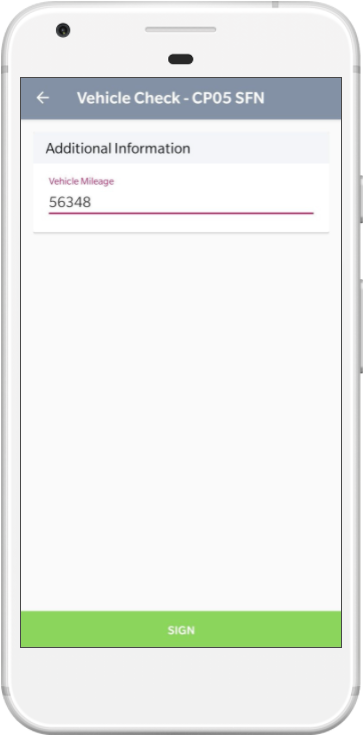
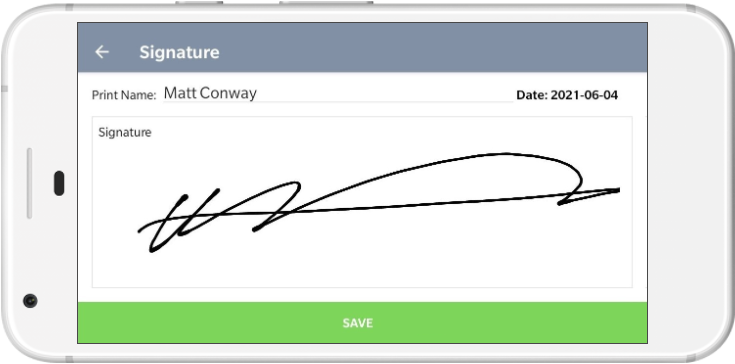
Complete each of the sections and choose Sign.
5) View Item Totals
The item totals is a summary of the items being serviced on this delivery, you can use this to load any items or equipment that you need off the van. When you’re ready press Start at the bottom which will stamp the current
time as the start time for this delivery.
You can choose to force that a vehicle check is completed before a driver can begin their work for the day. For more information, see the “Requiring a vehicle check” page.