Synchronized Billing aligns the invoice dates of an account’s agreements, ensuring they are invoiced simultaneously. Any pro-rata dates will be adjusted accordingly.
For example, a customer has an invoice group set to align their agreements to the first of each month. They have two agreements in this invoice group, both aligned to 1st December to match the group’s date. A third agreement has an invoice date of 16th November. When this third agreement is added to the invoice group, its date will be adjusted to align with the group’s date, which is December 1st. Pro-rata charges will be calculated from 16th November to 30th November. The diagram below illustrates this Invoice Group setup:
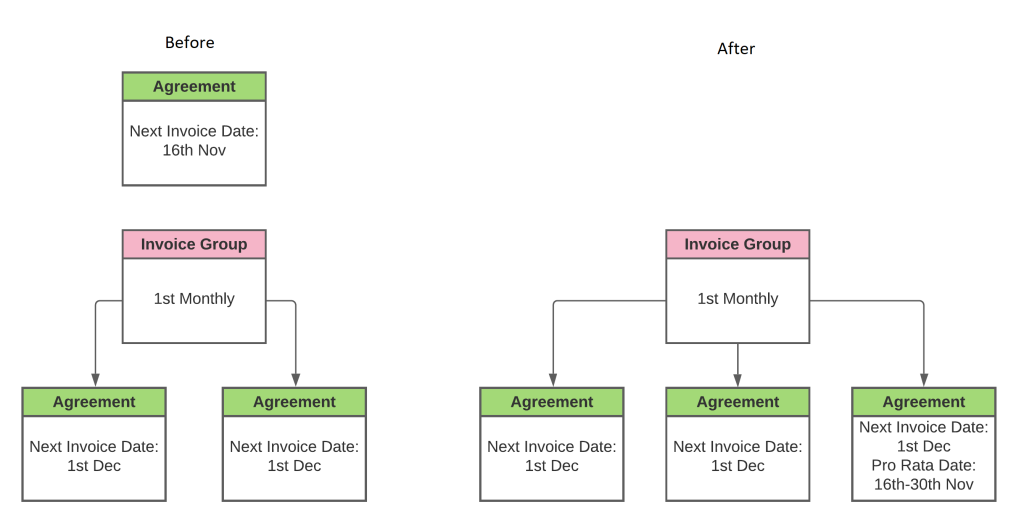
Each invoice group has a “Master Agreement.” After synchronizing the agreements with the group, they will continue to be invoiced, and the group’s invoice date will advance accordingly. The Master Agreement ensures that you don’t need to continually adjust the alignment date for the invoice group.
Creating an invoice group
- From the home page, click the Invoices button on the main toolbar
- Click the Accounts tab
- Search for the invoice account for which you want to synchronize invoice dates
- Click the Synchronise Invoice Dates tab
- Click the Create Group button
- Enter a description for the group
- Select the date to which you want to align the invoice dates
- Click the Save button
Your new invoice group will now be displayed and ready for agreements to be added
Synchronising a live agreement
- From the home page, click the Invoices button on the mail toolbar
- Click the Accounts tab
- Search for the invoice account that your agreement is on
- Click the Synchronise Invoice Dates tab
- In the grid, select the group that you want to add the agreement to
- Click the Add Agreement button
- In the popup, search for the agreement you want to add and select it
- Click the Ok button
The invoice date for your agreement will automatically adjust to align with the invoice group
Synchronising a pending agreement
When you move an agreement from Pending to Live, you can select an Invoice Group to align the new agreement’s invoice dates. Each Invoice Account can require this step before the agreement goes live.
- Click the Sales button on the main toolbar
- Click the Pending tab
- Search for the agreement that you want to move live
- Click the Options button and select the Complete button from the menu
- In the popup, in the Synchronise Invoice Dates area you can use the … button to search for an Invoice Group on this Invoice Account
- If the Invoice Account requires that an Invoice Group is selected and there is exactly one match, it will automatically be selected for you.
- Once you have selected your Invoice Group, click Save
Your agreement will now display the Next Invoice Date automatically aligned with the selected group. If pro-rata dates were required they will have been added for you.
Requiring all new agreements for an account to be synchronised
Navigate to the Accounts screen in the Invoices area.

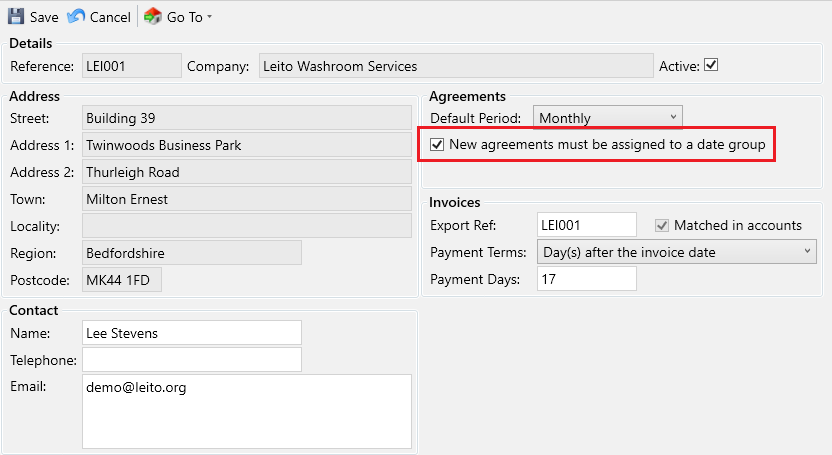
In the details window, click the Edit button, then check the box for “New Agreements must be assigned to a date group,” and click Save. From now on, when an agreement on this account is made live its invoice dates will be required to be synchronised.