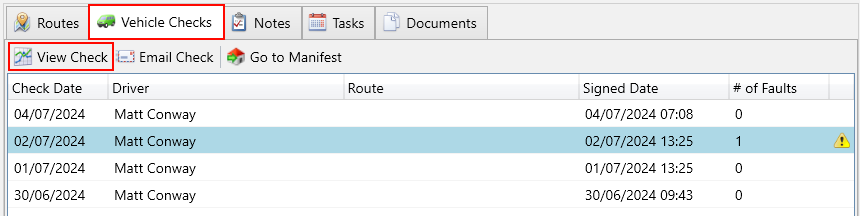
After your drivers complete a vehicle check using the mobile app, you can view all these checks in the Service Manager. Additionally, you can access the history of vehicle checks for any specific vehicle.
Viewing vehicle checks by date
Navigate to the Vehicle Checks screen under the Manifesting section.

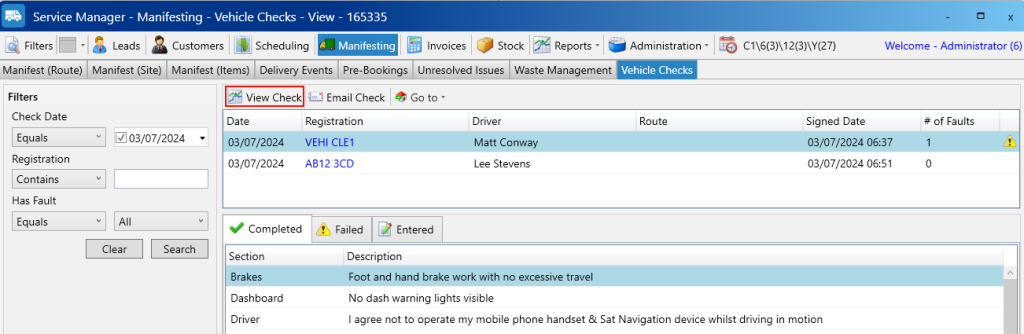
Next, use the search filters on the left to choose the date you want to view vehicle checks for. Then, in the grid, select the vehicle check you wish to view and click the “View Check” button on the toolbar. The vehicle check report will be displayed in a new window.
Viewing vehicle checks for a specific vehicle
Navigate to the Vehicles screen under the Scheduling section.

Next, use the search filters on the left to find the vehicle for which you want to view the checks. Then, select the the Vehicle Checks tab. In the grid, select the vehicle check you wish to view and click the “View Check” button on the toolbar. The vehicle check report will be displayed in a new window.