
All agreements begin in the New Agreements tab under the Customers section, allowing you to create new agreements for both new and existing sites.
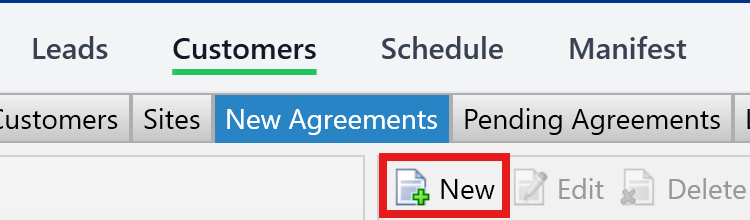
Navigate to the New Agreements Tab. Then, click the New button.
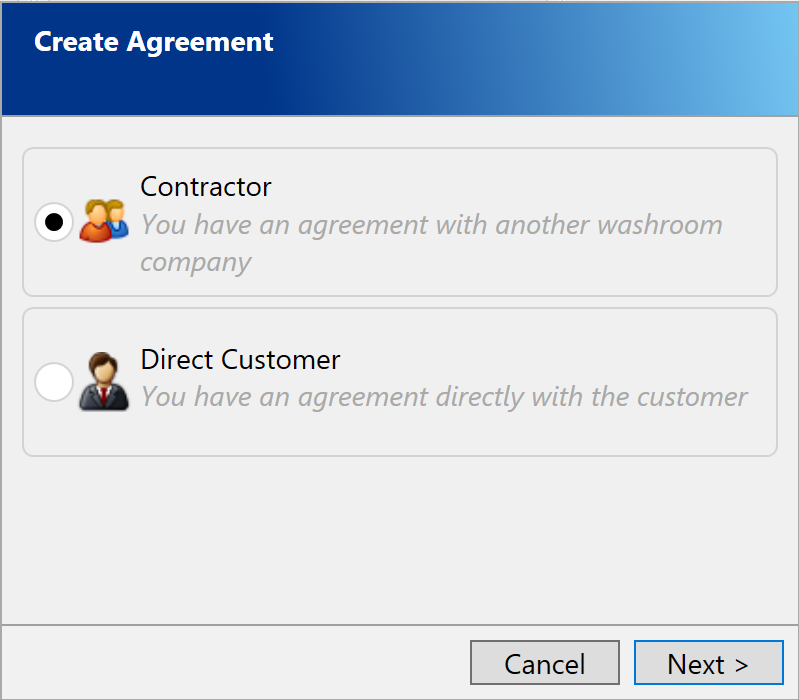
The Create Agreement popup will appear. Here you can choose between setting up a Contractor or a Direct Customer.
On the next page, you can select an existing Contractor or Customer by using the dropdown list or using the search button. You can also create a new Contractor or Direct Customer by clicking the Create New link.
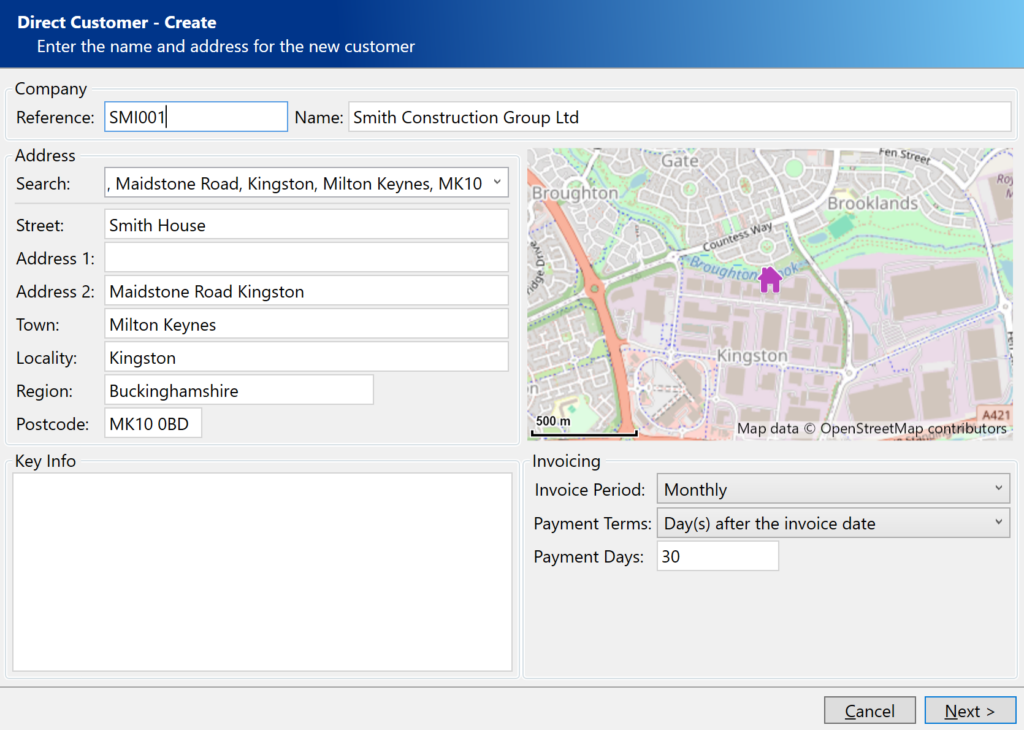
If you clicked “Create New” you will see the page above. Here you can either manually enter the company address information or use the search box to lookup the address. Make sure you add a site Reference and then click Next.
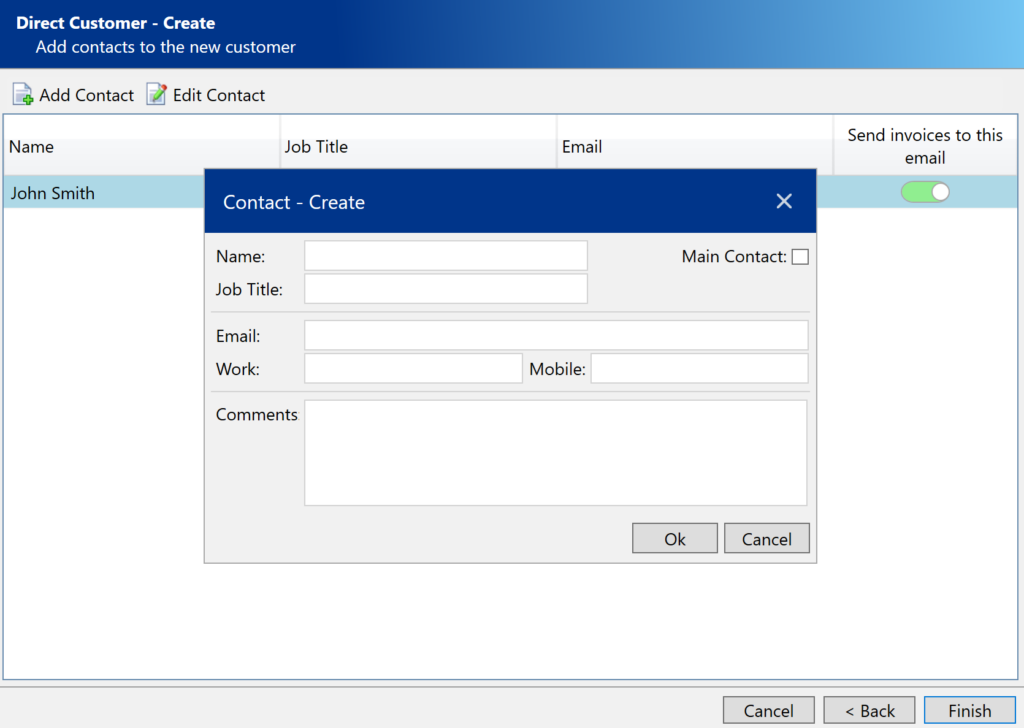
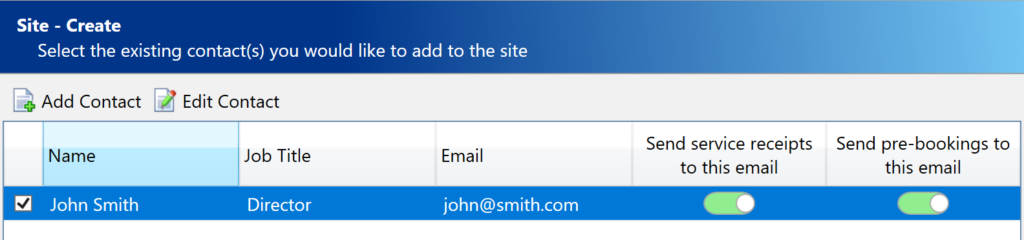
On the next screen, you can add any relevant contacts. Use the toggle to specify which contacts to send invoices to and click Finish when ready.
Next, you will see a popup asking if the site details will be the same as the customer, click “Yes” to copy the address details entered previously. Otherwise, click “No” to enter a new site address.
You will now see the create site page. If you clicked No on the previous screen you can now enter the new site address. Click Next when you are happy with the details.
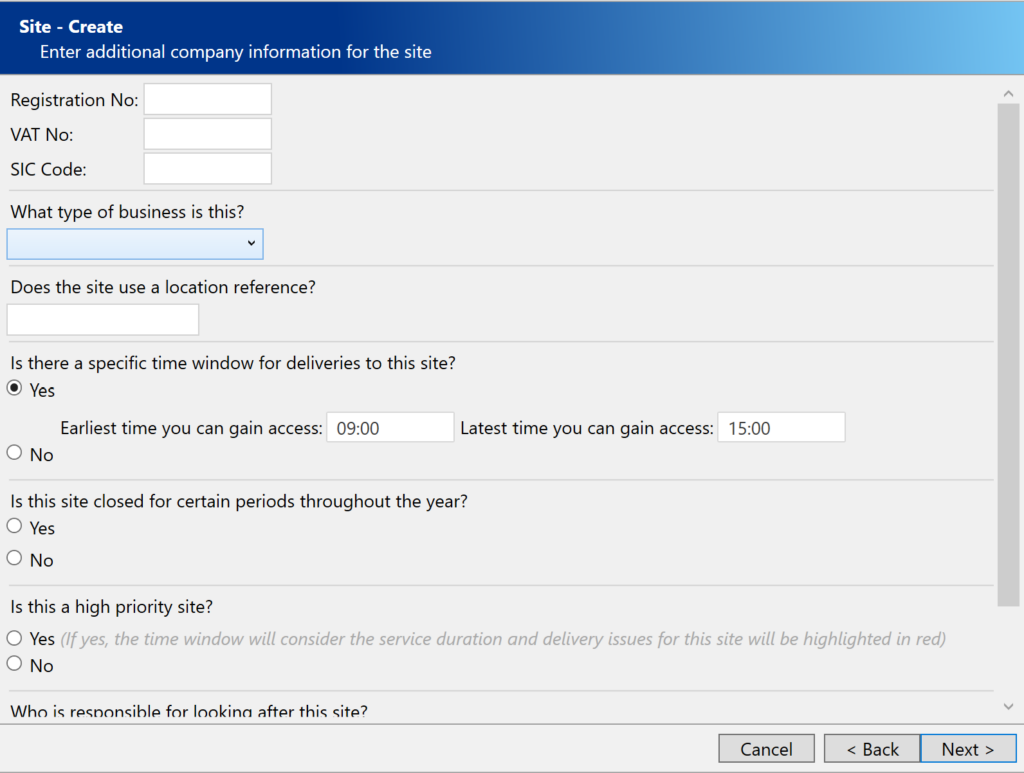
On the next screen you can add any additional site details you wish to record. You can also specify access times or seasonal opening hours for deliveries.
On the next screen you can add Site Contacts. If you added a contact against the customer previously they will appear here and you can choose to carry them over to the site. Use the toggles to decide who will receive pre-booking emails and delivery receipts.
After selecting or creating your site, press the Finish button to return to the Agreement popup, then click Next.
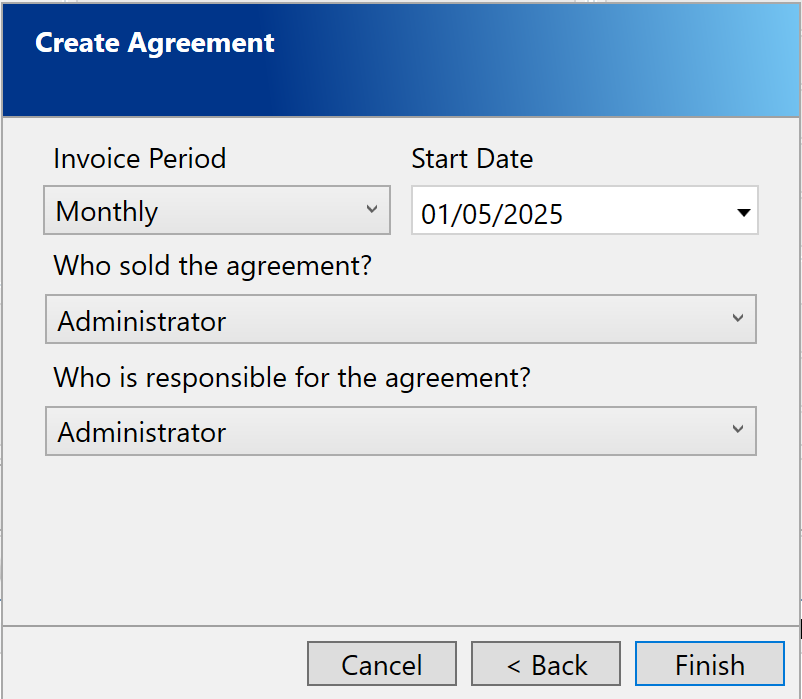
On this final page you can select your Invoice Period and Start Date for the agreement. You should also assign a member of staff as responsible for this agreement.
- Invoice Period – The frequency of invoicing for this agreement. If the agreement is for an existing contractor or direct customer, this will default to the period specified for the Invoice Account.
- Start Date – The desired start date for this agreement.
Click Finish, the popup will now close and your new agreement will be displayed on the screen ready to have items added to it. For more information on adding items to an agreement, see How to add an item to an agreement.