
A manifest must be created before any work can be carried out.
The manifest is what makes jobs live and pushes them to the driver app for the selected day or week.
If a manifest does not exist, drivers will not see their work.
Key Information
- A manifest is required to make jobs live for drivers
- You can create a manifest for:
- A single day
- The rest of the week
- A single route only
- Changes made to site deliveries or agreements will not update a manifest that has already been created
- If changes are made, the manifest must be recreated for those changes to appear
- Delivery events such as ad-hoc jobs or installs are not affected in the same way as standard site deliveries
Creating a Manifest
- From the home page, click Deliveries
- Open either Manifest (Routes) or Manifest (Sites)
- Click Create Manifest
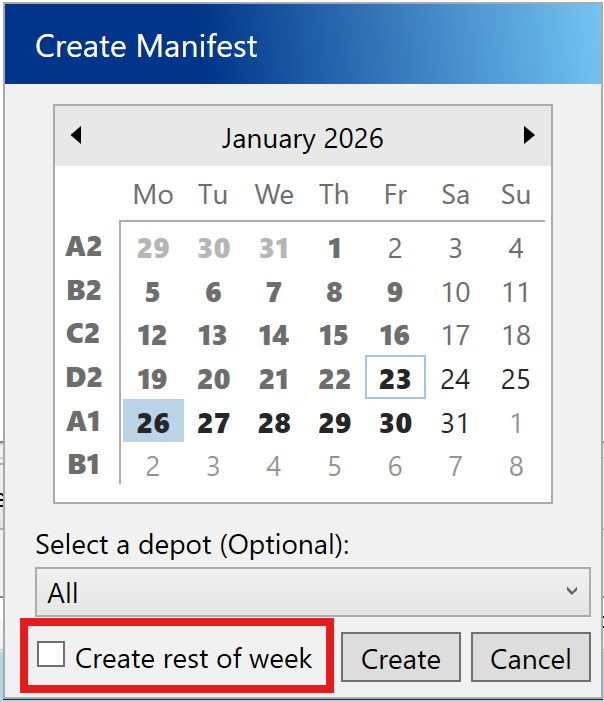
- The calendar will open
- Select the date you want to create the manifest for
- Click Create

Creating multiple days
- Select Create rest of week to create manifests up to Sunday
- A progress window will display while the manifests are being created
- Once complete, the newly created routes will be selected automatically
Recreating a Manifest
A manifest must be recreated if changes are made after it has already been created, for example:
- Adding a new site
- Adding or updating an agreement
- Changing items assigned to a route
To recreate a manifest
Repeat the steps above to create the manifest, a popup will appear asking if you are sure you want to overwrite the manifested routes, click yes. The existing manifest will be deleted and recreated so the latest changes are included.
When a manifest cannot be recreated
Under certain circumstances, a manifest cannot be recreated. This usually happens if a driver has already started work and captured a signature on the route.
In this case, the existing manifest must be completed as it is.