
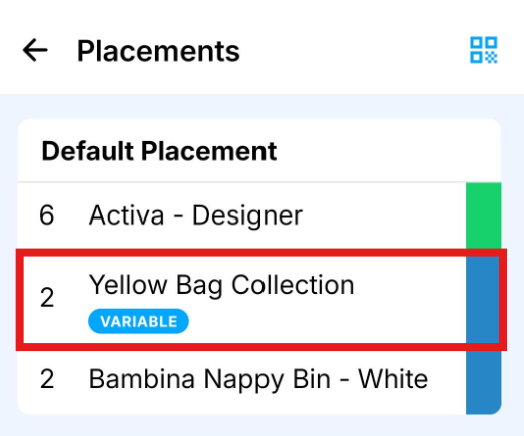
Variable quantity items are used when the exact amount delivered may change on each visit. These are clearly marked with a blue Variable flag on the item.
How to complete a variable item
- Press the item
Tap the item as you normally would to mark it as complete. - Adjust the quantity
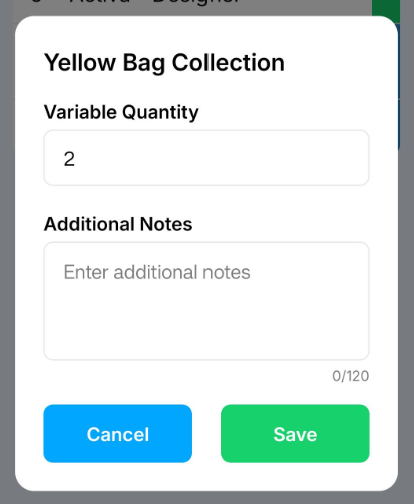
A pop-up will appear allowing you to change the quantity delivered.
Update this to reflect what was actually delivered on site. This ensures the customer is invoiced correctly. - Add notes (optional)
Enter any notes if needed. - Save
Press Save to confirm.
Once saved, the item will be marked as complete and you can continue the rest of the delivery as normal. See How to Complete a Delivery in the Mobile App