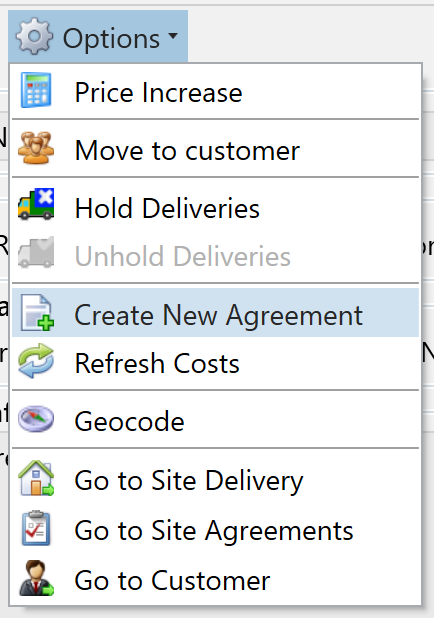
You can create quotes in Service Manager from leads, new agreements, or existing live agreements. This gives you flexibility depending on whether you are quoting for a new prospect or an existing customer.
Create a quote from a lead
Use this option when quoting before an agreement exists.
Steps:
- Open the lead.
- Add the required items to the lead.
- Click Reports.
- Select View Quote, Print Quote, or Email Quote.
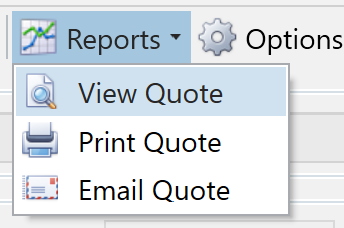
This allows you to review the quote on screen, generate a PDF, or email it directly to the contact on the lead.
Create a quote from a new agreement
This follows the same process as leads, but is useful once you are working towards setting up an agreement.
Steps:
- Open the new agreement.
- Add the required items.
- Click Reports.
- Select View Quote, Print Quote, or Email Quote.
Create a quote from an existing live agreement
Use this when quoting for an existing customer or site.
This option copies existing details and can carry over items if required.
Steps:
- Go to Live Agreements.
- Find the agreement you want to base the quote on.
- Click Options > Copy to New Business.
- When prompted, choose Yes to copy items if you want to reuse them.
- Add, remove, or edit items and prices as needed.
- Click Reports.
- Select View Quote, Print Quote, or Email Quote.
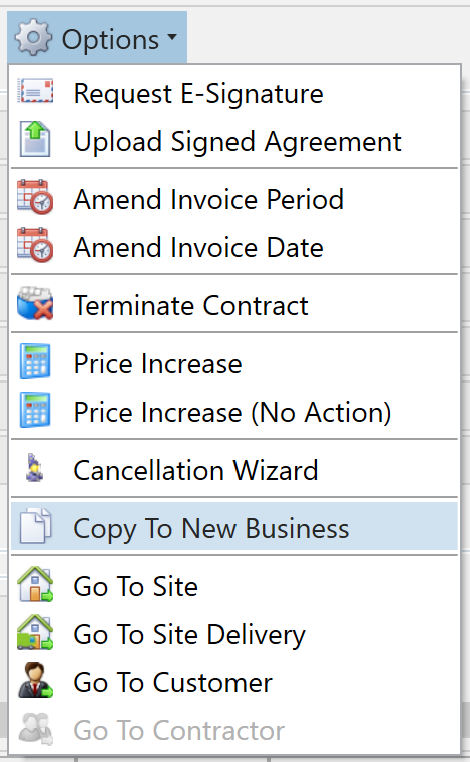
This creates a quote with customer and site details already populated, saving time and reducing re-keying.
Create a new agreement from a customer or site
If you want to start from scratch but keep customer details:
Steps:
- Open the relevant Customer or Site.
- Click Options > New Agreement.
- Follow the relevant Customer or Site options to create a new agreement
- Add items and pricing as required.
- Click Reports.
- Select View Quote, Print Quote, or Email Quote to generate the quote.