Before using the mobile app, a driver login must be created.
For help with this, see Creating a Driver Login.
The steps below show how to complete a delivery and capture a customer signature.
1. Open Deliveries
Log in to the mobile app and tap Deliveries on the home screen.
2. Select a Route
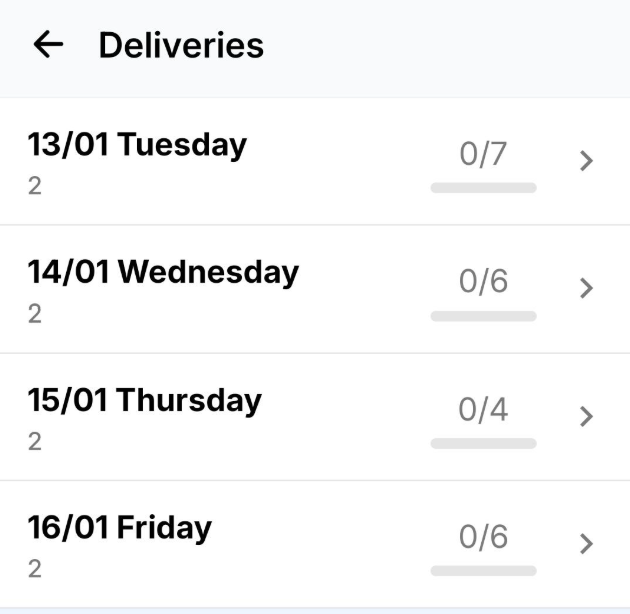
A list of your assigned routes will appear.
Tap the route you want to start servicing.
3. Select a Site
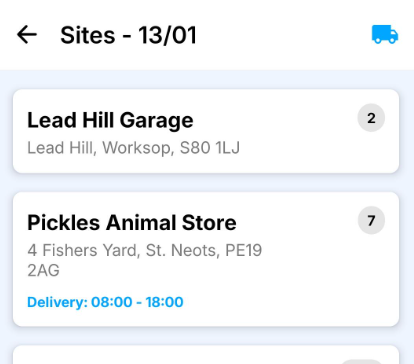
The sites for that route will be shown in the order set in Service Manager Desktop.
Tap the site you are visiting.
Tip: You can also view the van loading list for the route by pressing the blue van icon in the top right of the screen.
4. View Site Details
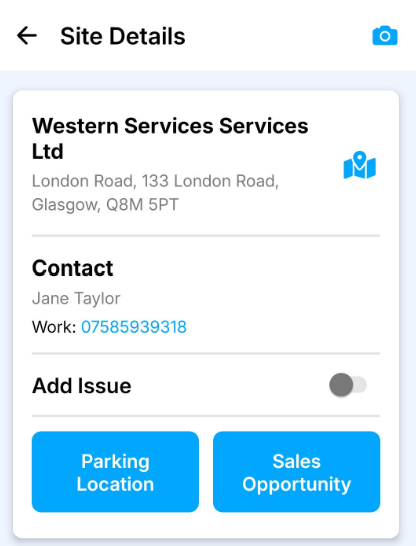
The Site Details screen shows useful information such as:
- Address
- Special instructions
- Opening hours
- Contact details
Tap Next to continue.
Tip: You can use the parking location button to update the map coordinates to your current location.

5. Check Item Totals
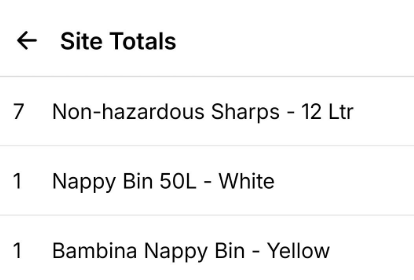
The Item Totals screen shows a summary of the items for this delivery.
Drivers often use this to confirm what needs to be taken off the van.
When ready, tap Start.
This records the start time for the delivery.
6. Action Items
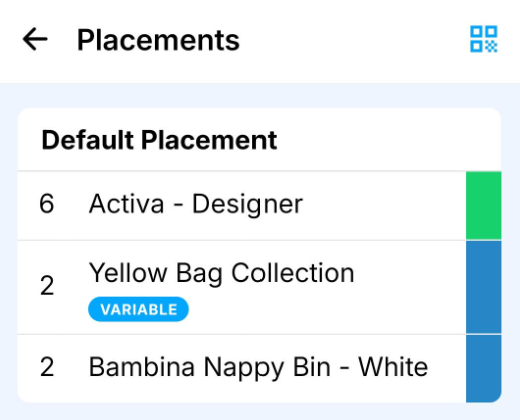
The items for the site will be displayed in placement order.
Tap an item to mark it as completed.
The item will change from blue to green once it has been actioned.
7. Capture the Signature
Once all items are completed, tap Sign at the bottom of the screen.
8. Save the Signature
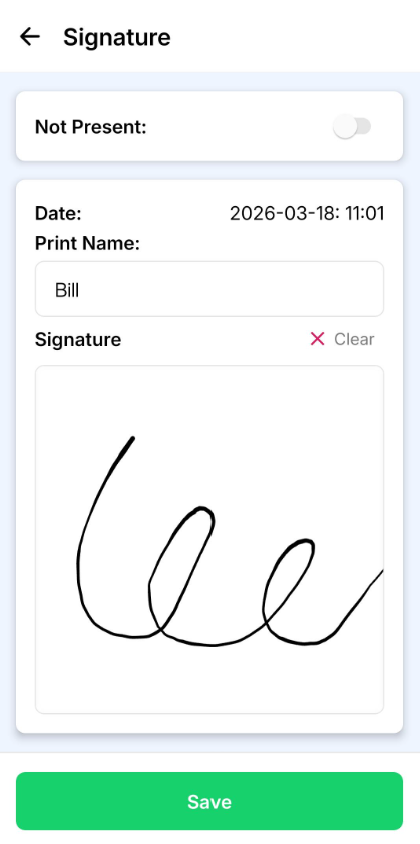
Enter the signee’s name and capture their signature if required.
Tap Save to complete the delivery.