
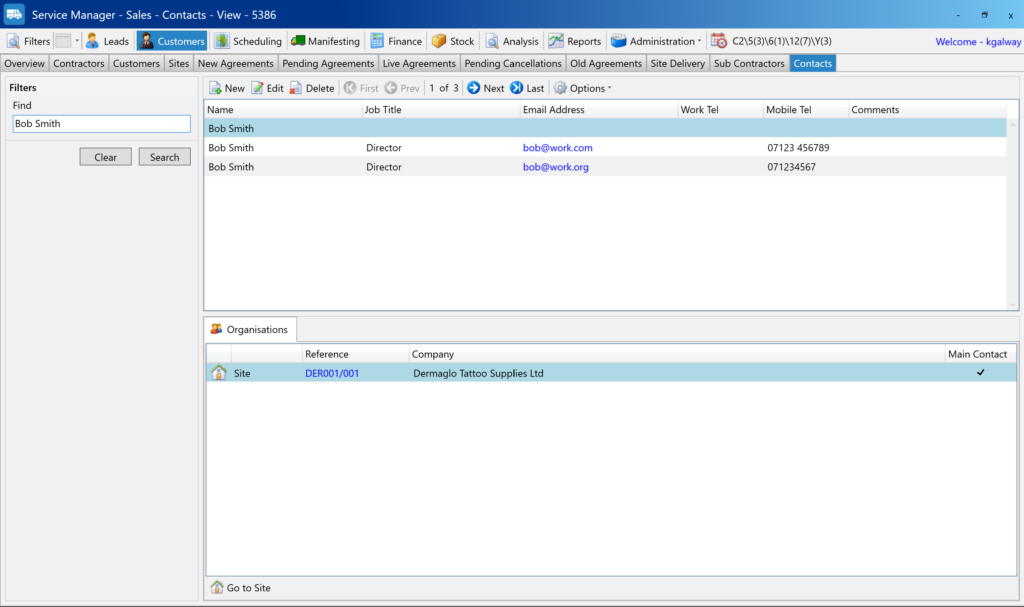
The Contacts screen allows you to view, edit, and manage all contacts across customers, sites, and other records. Contacts can be linked to multiple records, and duplicate contacts can be merged without losing those links.
Viewing the contacts screen
- Open the Contacts screen from the main menu
- The list shows all contacts in the system, regardless of which customer or site they are linked to
- Use the search and filters to quickly find specific contacts
Why merge contacts
You may see duplicate contacts where:
- The same person has been added more than once
- A contact exists with slightly different details (for example, name or email address variations)
Merging contacts helps keep records clean and avoids confusion when emailing or reporting.
Merging contacts
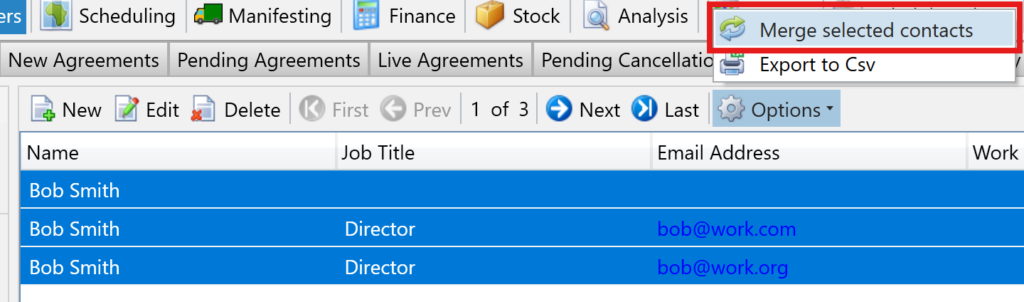
- In the Contacts screen, highlight the contacts you want to merge
- Click Options
- Select Merge selected contacts
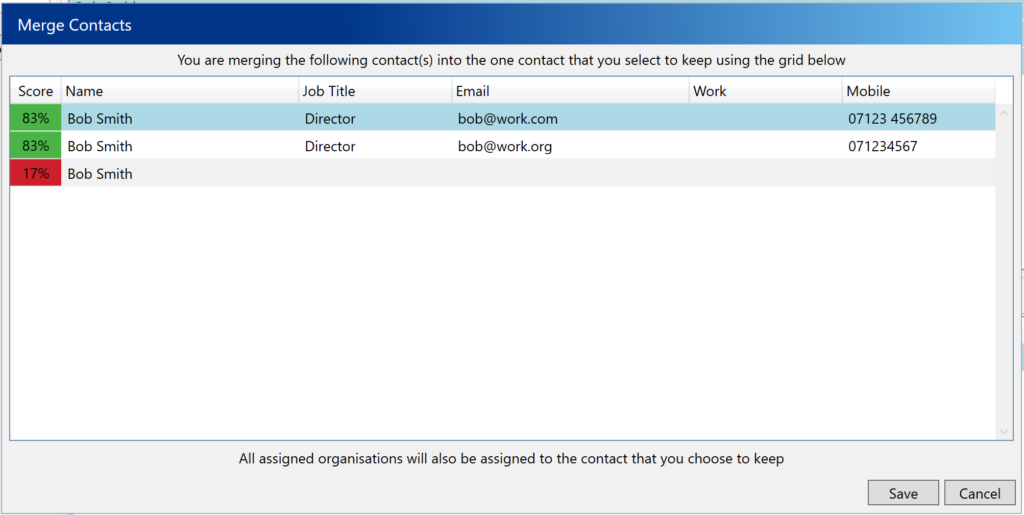
- A popup will appear showing the selected contacts
- Choose which contact details to keep (usually the one with the most accurate information)
- Confirm the merge
What happens after merging
- The selected contacts are merged into a single contact
- All existing links to customers, sites, and other records are retained
- No record associations are lost
Things to note
- Only selected contacts will be merged
- Merging cannot be undone, so it’s best to double-check details before confirming
- The final contact will use the details you choose in the merge popup