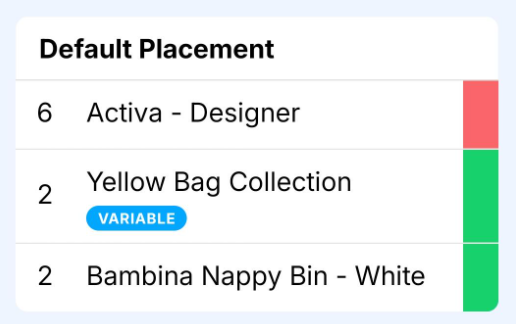
If something isn’t right during a visit, you can quickly log it directly in the app. Issues can be recorded either against the whole site or against individual items, and will be visible in Service Manager Desktop for follow-up.
Reporting a site issue
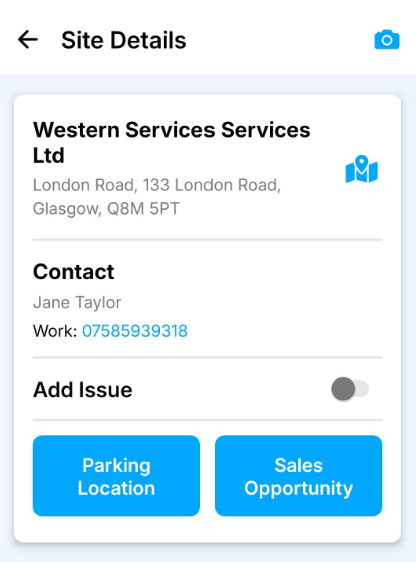
You can report an issue for the entire site from the Site Details screen.
1) Enable site issue
Use the Add Issue toggle on the Site Details page to indicate there is a site-level issue.
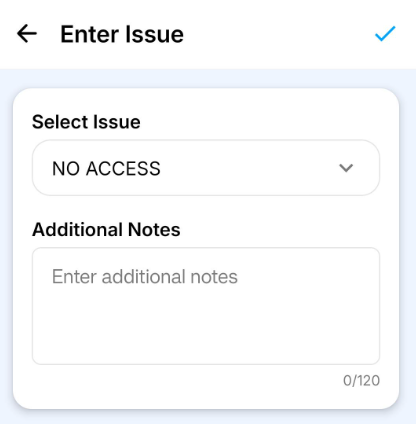
2) Enter issue details
Select the issue type and add any relevant notes.
Press the tick in the top right to save.
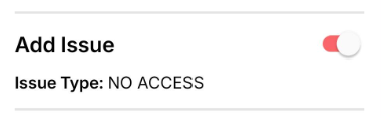
3) Issue recorded
The site issue will now be logged and visible in Service Manager Desktop for review.
Reporting an item issue
Each item on the mobile app can have an issue reported against it. These will then be visible in Service Manager Desktop to be reviewed and resolved.
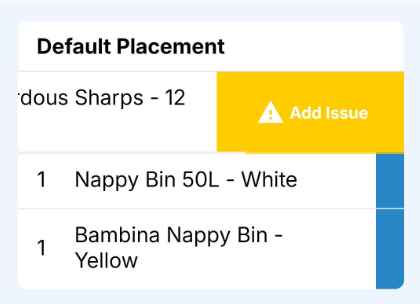
1) Swipe on the item
From the items screen, locate the item you want to report an issue for.
Swipe left on the item to reveal the issue option.
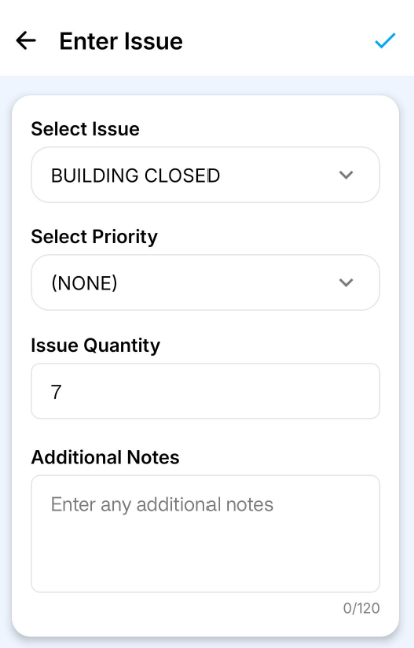
2) Enter issue details
Select an issue from the list and enter any additional notes if required.
Press the tick in the top right to save.
3) Issue displayed
The item will now be highlighted in red to indicate an issue has been recorded.
You can continue completing the remaining items as normal before proceeding to sign.
Tip: You can remove the issue by swiping left on the item again.