
Service Manager includes two ways to search:
- Global Search – searches across the entire system
- Screen Filters and Find boxes – search within the screen you are currently viewing
Understanding the difference will help you find information much faster.
Global search
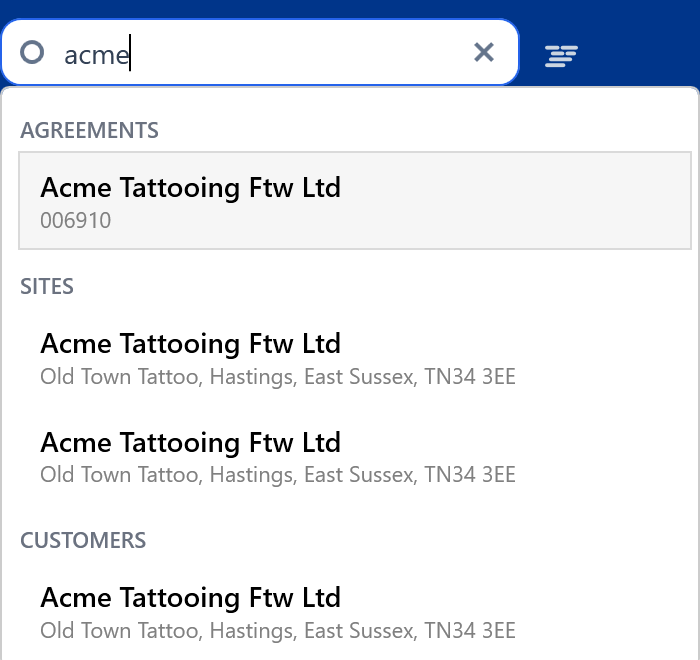
The new global search in Service Manager helps you find records instantly from anywhere in the system.
Simply start typing a customer name, site name, address, or reference number, and Service Manager will return anything it can find that matches.
Results are grouped by screen, such as Customers, Sites, or Agreements, so you can immediately see where the record lives. Click a result to jump straight to the correct screen.
Screen Filters and Find Boxes
Each screen in Service Manager also has its own search and filtering tools. These only apply to the section you are currently viewing.
Accessing the filters panel
The filters panel is not always visible.
Press Ctrl + F to show or hide the filters for the current screen.
This allows you to search and filter records within that specific section.
Using the Find box
Most screens and tabs include a simple Find box at the top.
You can:
- Enter a keyword, name, or reference to see matching results
- Use additional filter fields such as status, date range, customer, or reference number
- Press Enter or click Search to update the list
- Click a record to open it
Some modules support partial matches, so you do not always need the full name or reference.
Use screen filters when:
- You are already in the correct section
- You need to narrow down a long list
- You want to filter by specific fields like status or date
If no results are returned
If you cannot find what you are looking for:
- Check spelling
- Clear or widen any filters
- Use part of a name or reference instead of the full value
- Confirm the record exists in the system
If needed, check with a colleague or your administrator.