
Appearance
How do I set up a new user?
Before someone can sign in to Service Manager, you need to create a user for them. You then give them roles, which control what they can see and do in the desktop app.
Users are no longer set up inside the desktop app. You do it in the Admin Portal, a website you open in your browser.
INFO
To set up users you need the Manage users permission in the Admin Portal. If you're an Administrator, File → Security in the desktop app opens the Admin Portal for you.
Creating a new user
- Open the Admin Portal and click Users at the top of the page.
- Click Create user.
- Fill in the person's details:
- First name
- Last name
- Email – this is the address they'll sign in with.
- Job title – you can leave this empty.
- Click Create user.
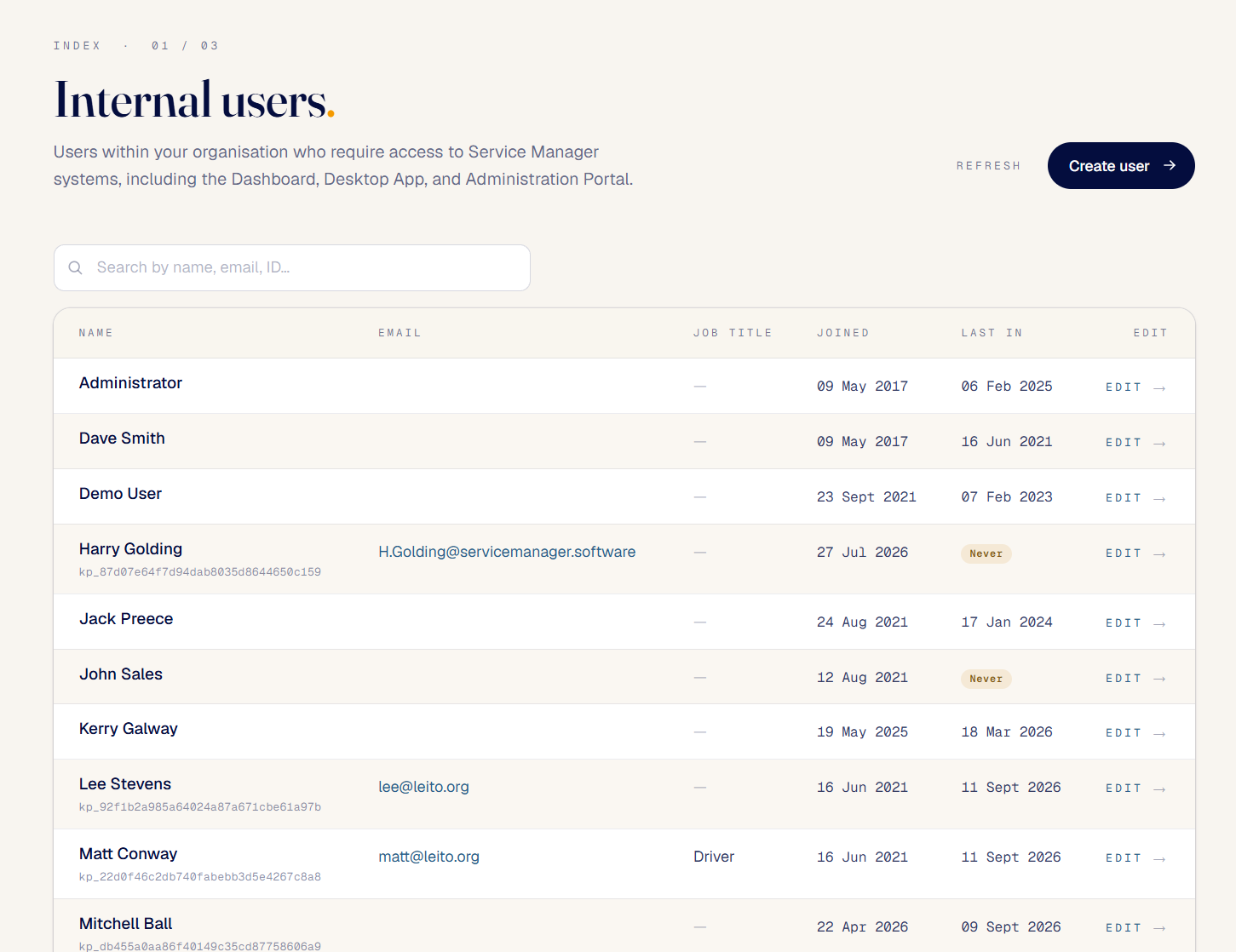
Service Manager sends the person a welcome email. They follow it to choose their own password and sign in. You don't set a password for them.
Adding roles to a user
- In the Admin Portal, click Users and find the person in the list.
- Click Edit.
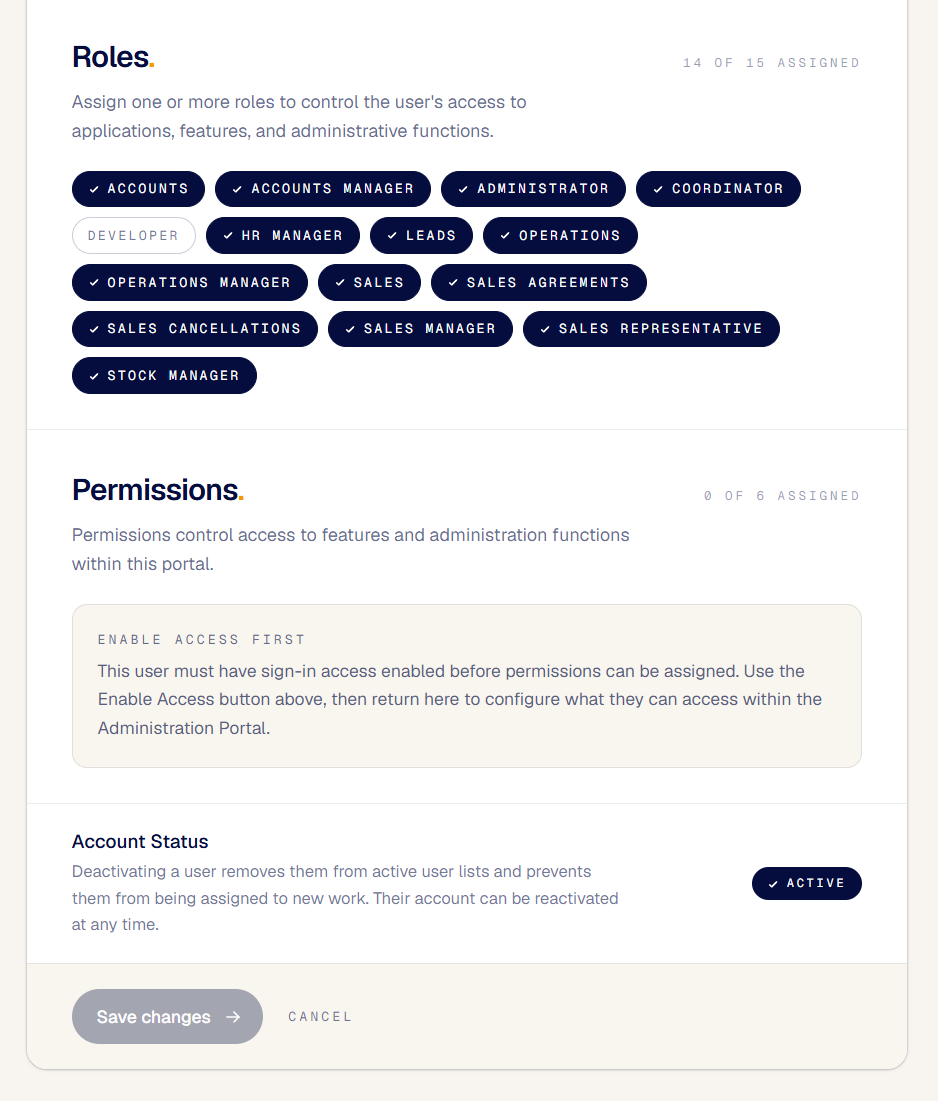
- In the Roles section, switch on each role you want them to have.
- Click Save changes.
Removing roles from a user
- In the Admin Portal, click Users and find the person in the list.
- Click Edit.
- In the Roles section, switch off the role you want to take away.
- Click Save changes.
INFO
A change to someone's roles only takes effect the next time they sign in. If they're already using Service Manager, ask them to close it and sign in again. Until they do, buttons and menus for their new role won't appear.