
Appearance
Searching in Service Manager
Service Manager includes two ways to search:
- Global Search – searches across the entire system
- Screen Filters and Find boxes – search within the screen you are currently viewing
Understanding the difference will help you find information much faster.
Global search
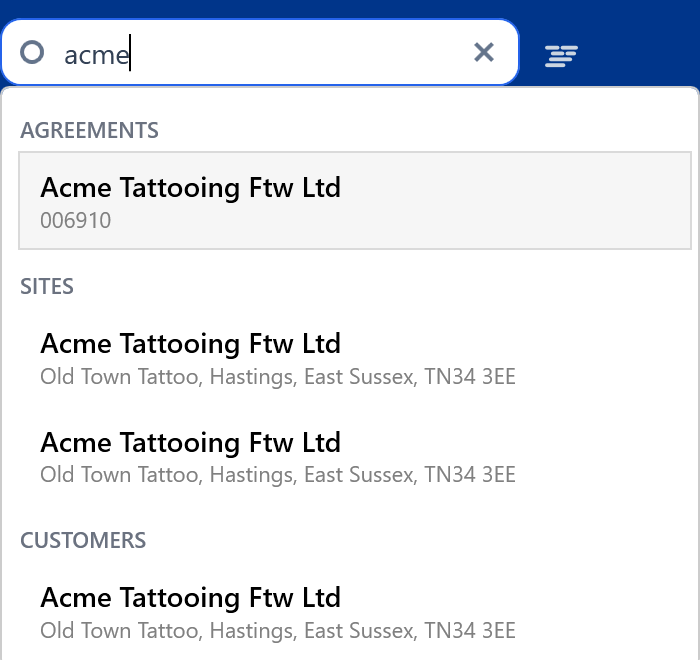
The new global search in Service Manager helps you find records instantly from anywhere in the system.
Simply start typing a customer name, site name, address, or reference number, and Service Manager will return anything it can find that matches.
Results are grouped by screen, such as Customers, Sites, or Agreements, so you can immediately see where the record lives. Click a result to jump straight to the correct screen.
Screen Filters and Find Boxes
Each screen in Service Manager also has its own search and filtering tools. These only apply to the section you are currently viewing.
These tools sit in the row of buttons along the top of each screen.
Using the Find box
Most screens and tabs include a simple Find... box at the top.
Type a name or reference into it, and the list shows only the matching lines. You don't always need the full name or reference. Part of it is usually enough.
Using the Filters button
The Find... box only looks at the main details, usually the reference and the name. To search on anything else, such as the street, town, postcode or Key Info:
- Click Filters, next to the Find... box.
- Type into the boxes you want to search on.
- Click Show results.
To start again, click Reset in the same window.
Many screens also have lists next to Filters, such as Route, Driver or Status. Choose from them to narrow the list down further.
Clearing and refreshing
- Clear empties the Find... box, the Filters window and the lists in one go.
- Refresh reloads the list, so you see any changes other people have made.
Use screen filters when:
- You are already in the correct section
- You need to narrow down a long list
- You want to filter by specific fields like status or date
If no results are returned
If you cannot find what you are looking for:
- Check spelling
- Clear or widen any filters
- Use part of a name or reference instead of the full value
- Confirm the record exists in the system
If needed, check with a colleague or your administrator.