
Appearance
Performing a vehicle check
You can complete a vehicle check for every vehicle you use on a given day. If you have no deliveries for today, the vehicle checks area will be empty.
You can choose to force that a vehicle check is completed before a driver can begin their work for the day. For more information, see the “Requiring a vehicle check” page.
Below walks you through completing a vehicle check on the mobile app.
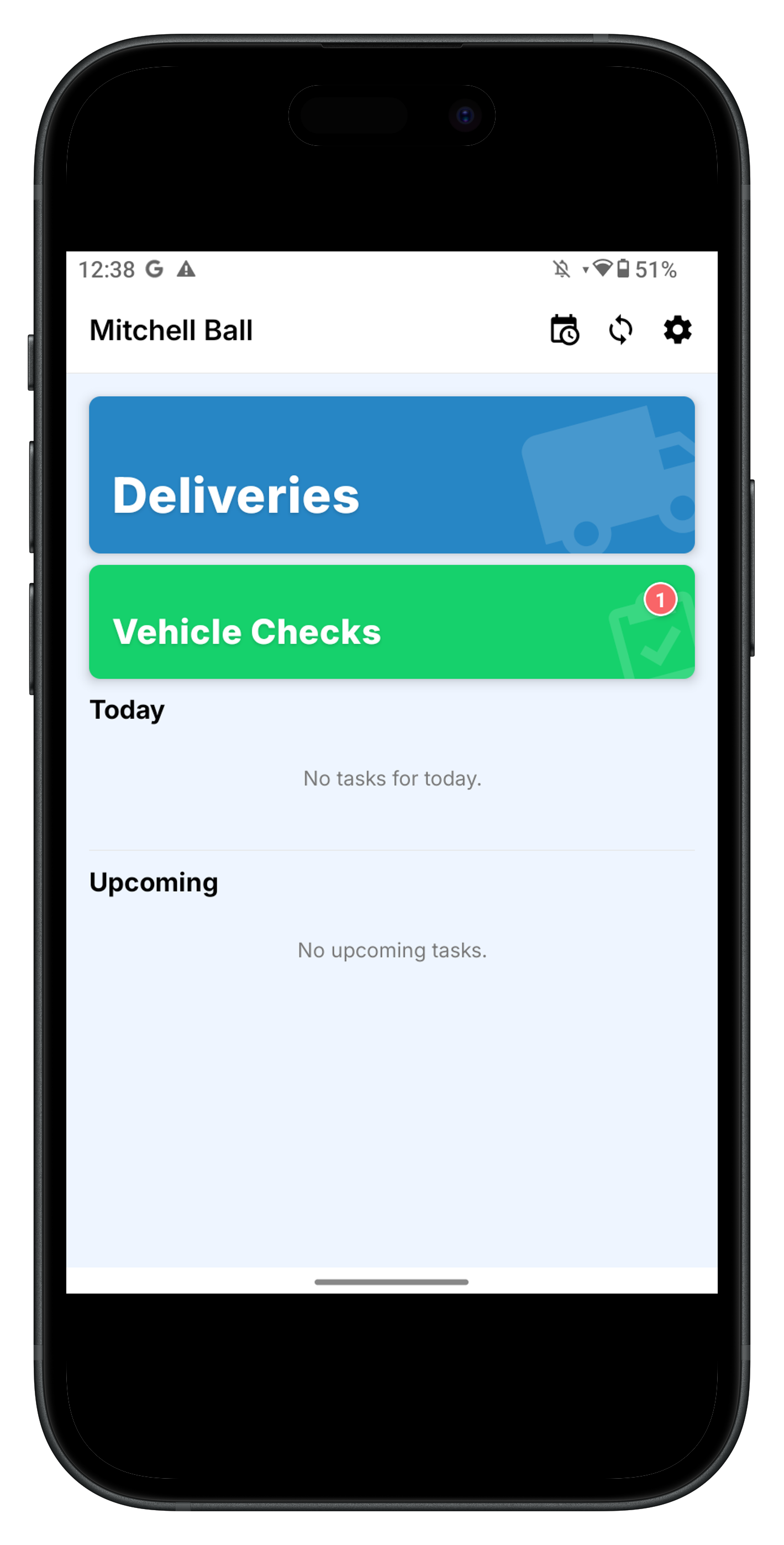
1) Open Vehicle Checks
Login to the app and press Vehicle Checks on the home screen.
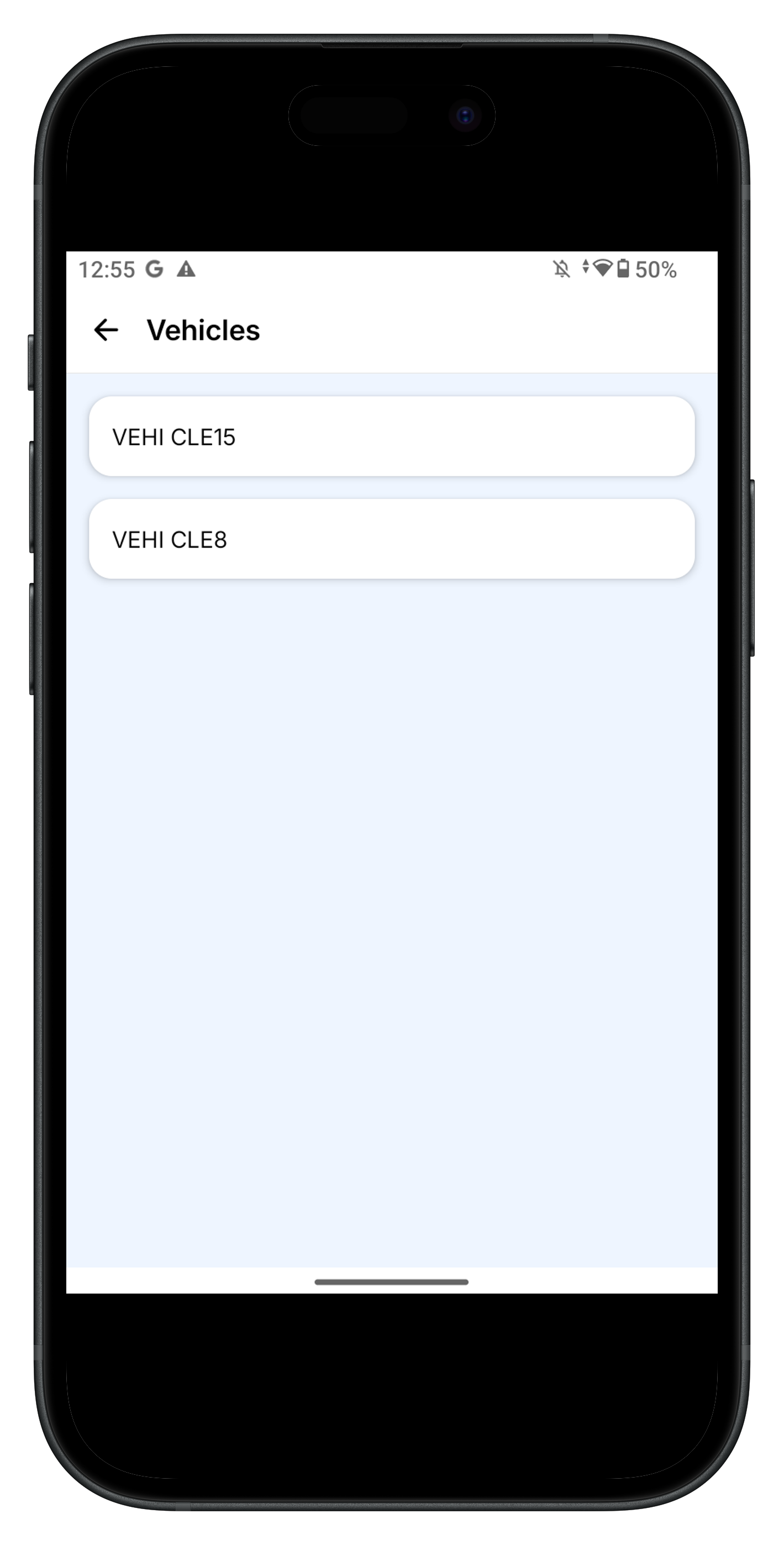
2) Vehicle Selection
If you are assigned to more than one vehicle for the day, you will need to perform a check for each one. This step will be skipped if you only have one vehicle for a day.
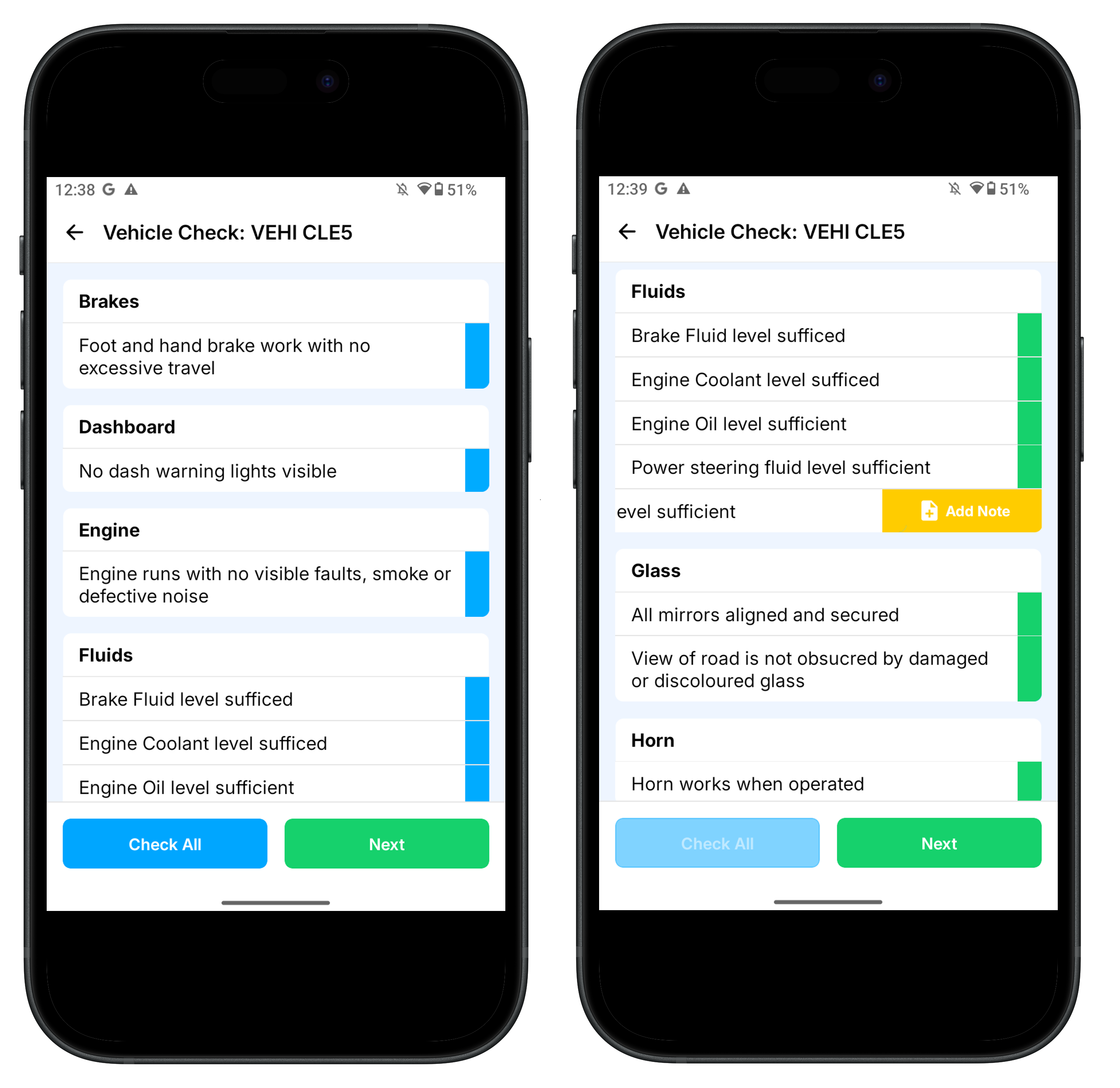
3) Checklist
Complete all of the shown vehicle checks exactly as you would one of your deliveries by pressing each item.
If there is an issue with something on the vehicle and you need to report an issue for it, swipe the item to the left to add an issue; exactly the same as you would for an item on a delivery. For more information on issues see Reporting issues on the mobile app.
If everything is fine, you can tap Check All to mark all the remaining items as checked in one go.
When all checks are actioned click Next.
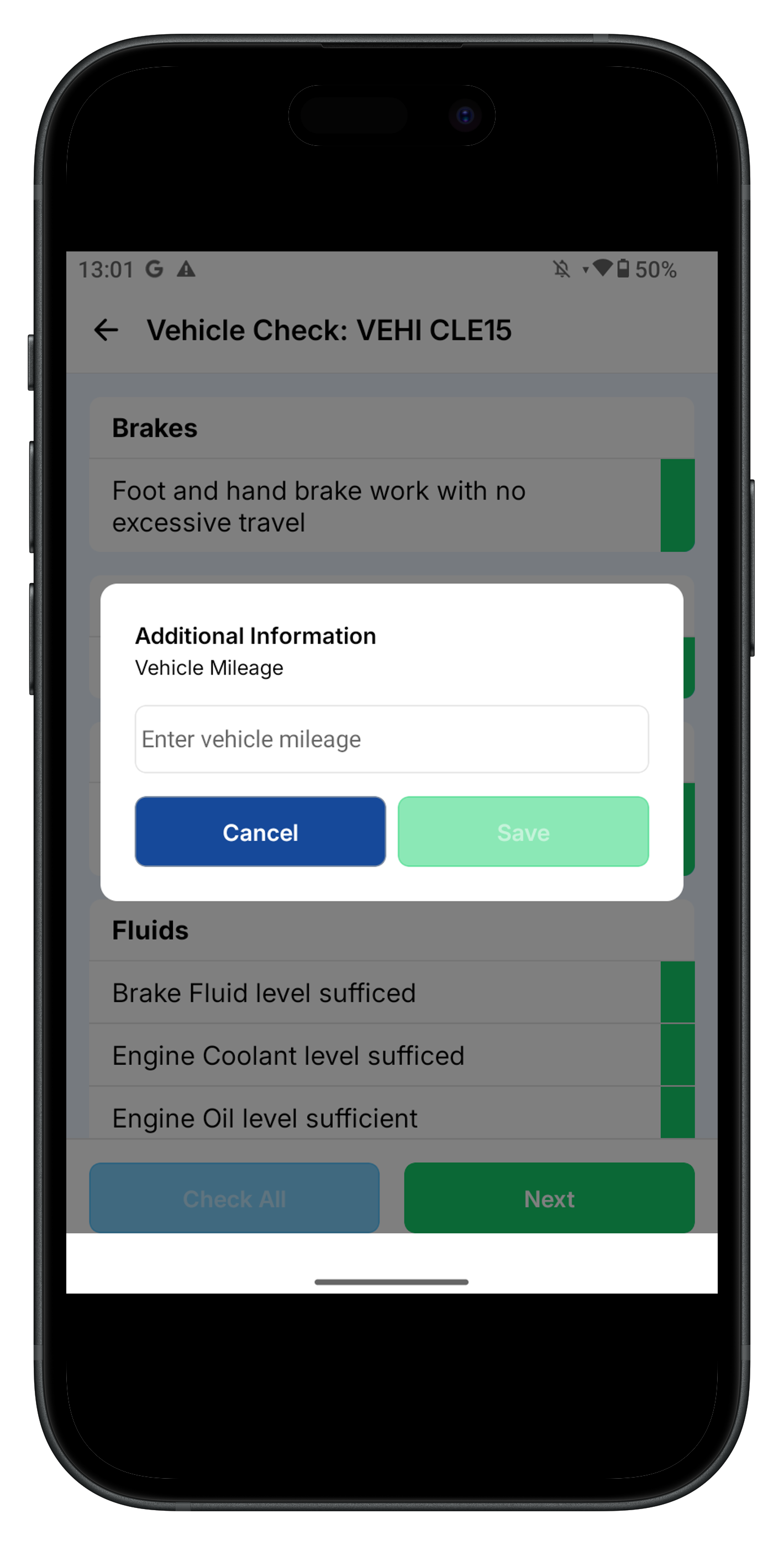
4) Vehicle Details
After completing the checks, you will be prompted to enter vehicle mileage, fill this and choose Save.
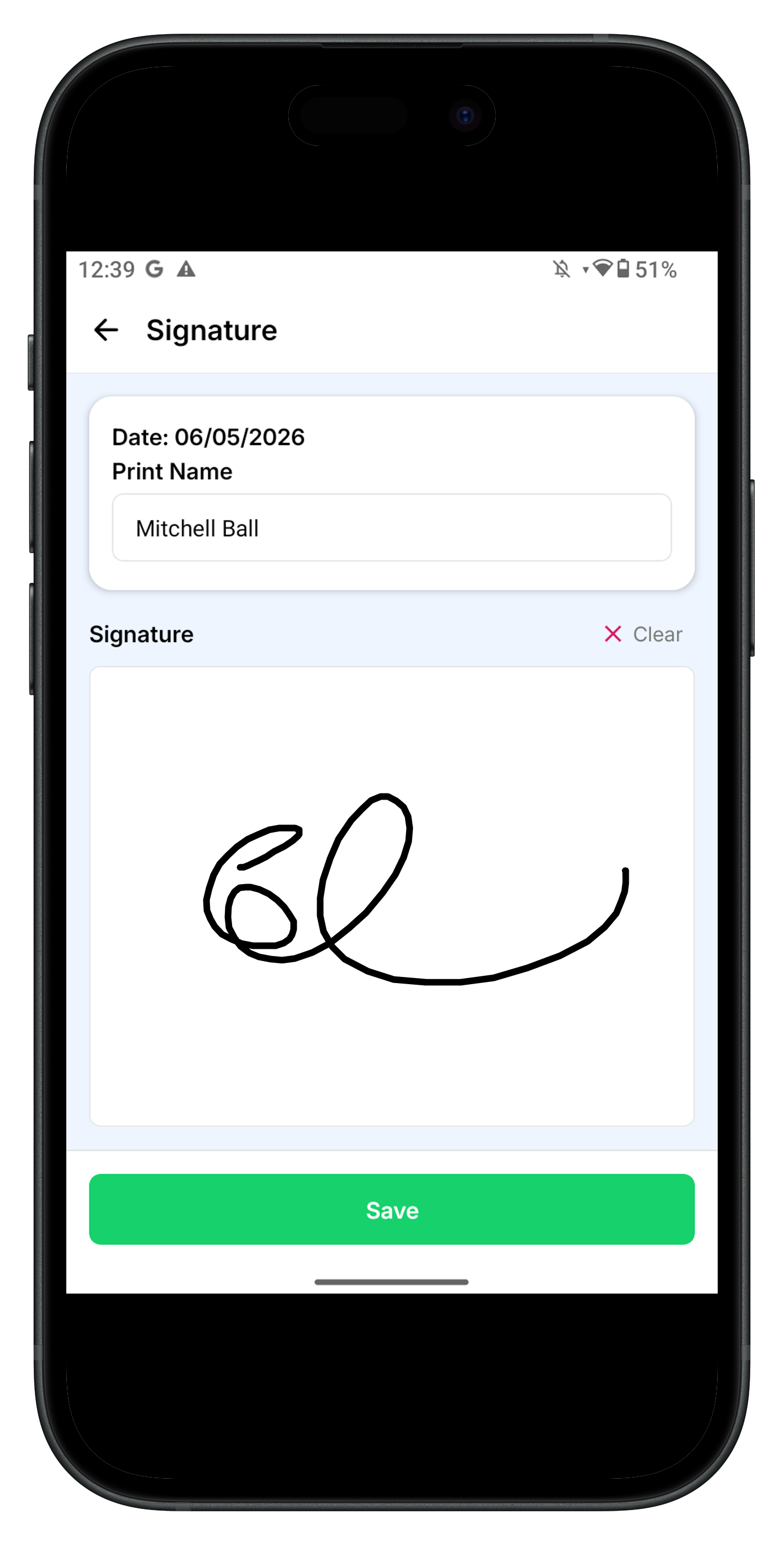
5) Sign
Here you will be prompted to sign your name, after this you can click save to finish the vehicle checks.
You’re now finished with the vehicle checks and can head on to starting your deliveries. For help with this head to –