
Appearance
How To Send Manifest To Mobile
When routes are manifested, they are not automatically sent to the mobile, this is done manually incase there is any changes that need to be done to the route before the driver receives it.
INFO
This only applies if your company uses the release process. It's switched on in File → Edit Settings, on the Deliveries tab, with the Use the delivery release process tick box. If it's switched off, routes go to the drivers' phones as soon as the manifest is created.
To check if a route has been released, head to Manifest and then Manifest (Route). The Status column on the left of the screen shows whether each route is Deferred (not yet on the driver's phone) or Released.
To release a route, or multiple, tick the box on the far left of each one, and then press the Release button. This will ask you to confirm if you’d like to release the selected route(s) to mobile!
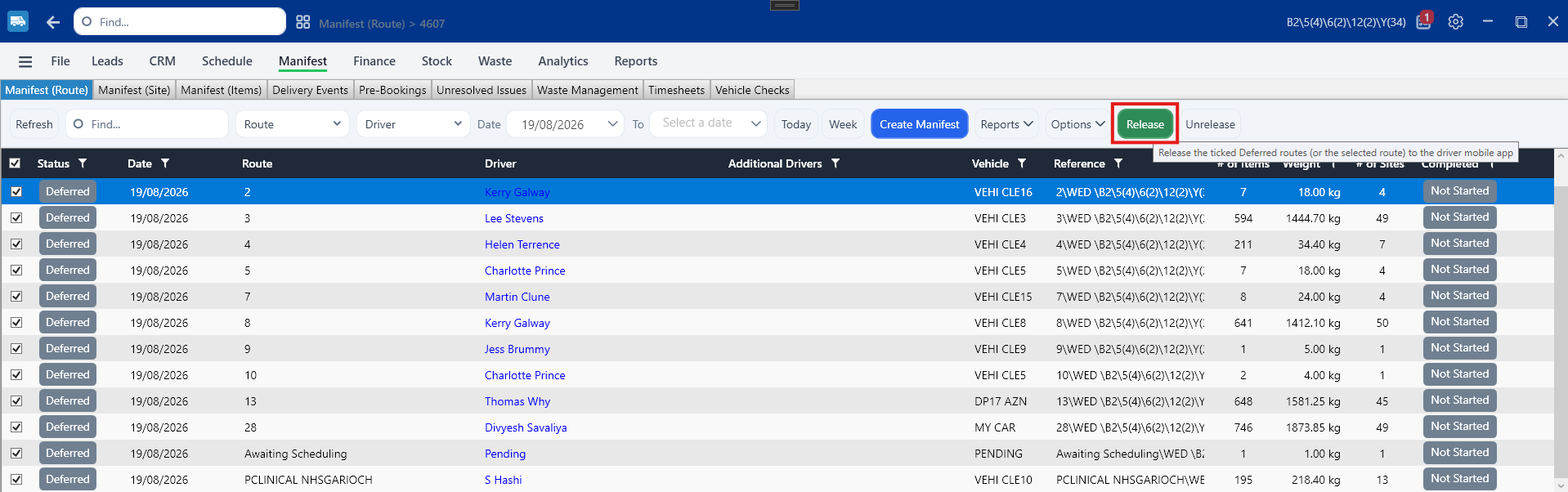
Note: If you want to select all routes on a day, or within a date range, you can tick the box at the top of the column. This will automatically select all routes on the list.
What if I need to change a route I already released?
You can change a route that has been released to mobile, as long as nothing on it has been signed for on the mobile app yet.
To do this, select the route you’d like to unrelease. Then click Options, then Unrelease from Mobile.
This will then ask you to confirm the unrelease of the route, which puts it back to Deferred.
Note: If you have released a route and unrelease it, the original released route will still be on the driver's mobile. This will remain unchanged until you release the new, adjusted route.