Appearance
Reporting issues on the mobile app
If something isn’t right during a visit, you can quickly log it directly in the app. Issues can be recorded either against the whole site or against individual items, and will be visible in Service Manager Desktop for follow-up.
Reporting a site issue
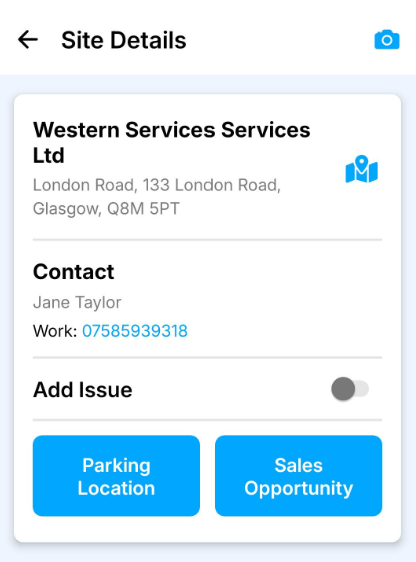
You can report an issue for the entire site from the Site Details screen.
1) Enable site issue
Use the Add Issue toggle on the Site Details page to indicate there is a site-level issue.
2) Enter issue details
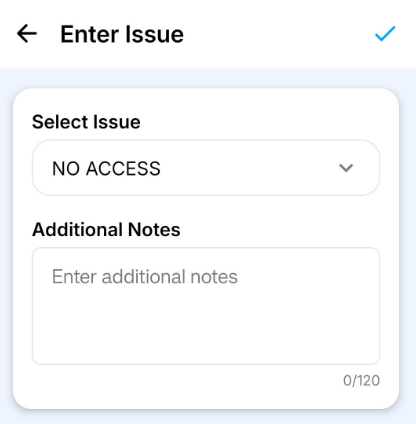
Select the issue type and add any relevant notes.
Press the tick in the top right to save.
3) Issue recorded
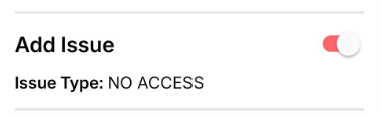
The site issue will now be logged and visible in Service Manager Desktop for review.
Reporting an item issue
Each item on the mobile app can have an issue reported against it. These will then be visible in Service Manager Desktop to be reviewed and resolved.
1) Swipe on the item
From the items screen, locate the item you want to report an issue for.
Swipe left on the item to reveal the issue option.
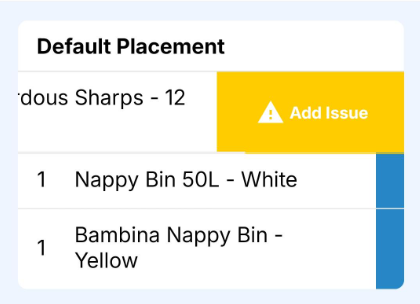
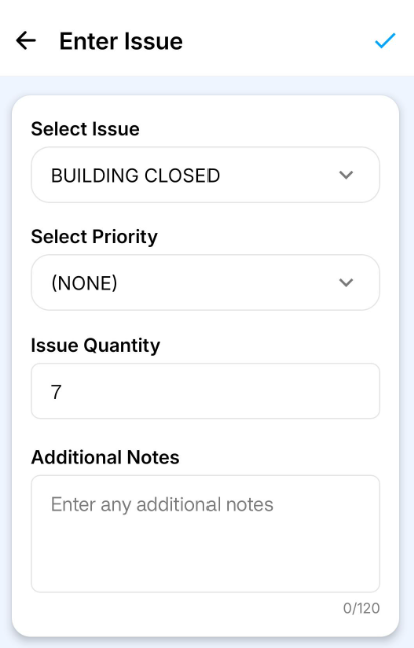
2) Enter issue details
Choose the issue from Select Issue. You can also choose a Select Priority, change the Issue Quantity if only some of the items are affected, and add Additional Notes.
Press the tick in the top right to save.
3) Issue displayed
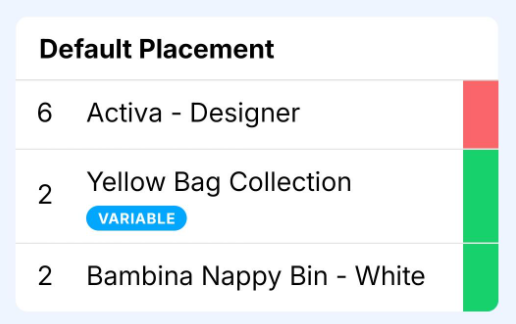
The coloured bar on the right of the item turns red to show an issue has been recorded.
You can continue completing the remaining items as normal before proceeding to sign.
Tip: You can remove the issue by swiping left on the item again.