Appearance
How to Complete a Delivery in the Mobile App
Before using the mobile app, a driver login must be created.
For help with this, see Adding a Driver.
The steps below show how to complete a delivery and capture a customer signature.
1. Open Deliveries
Log in to the mobile app and tap Deliveries on the home screen.
2. Select a Day
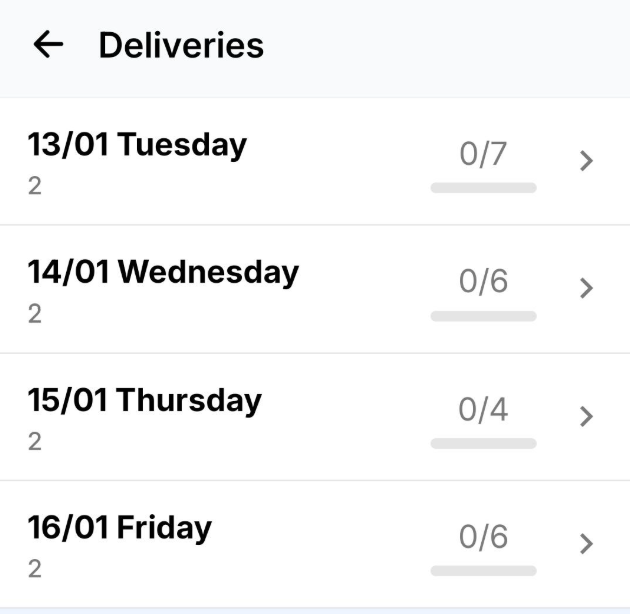
The Deliveries screen lists your work by day, for example 13/01 Tuesday, and a count of how much of it you’ve done so far.
Tap the day you want to start servicing.
3. Select a Site
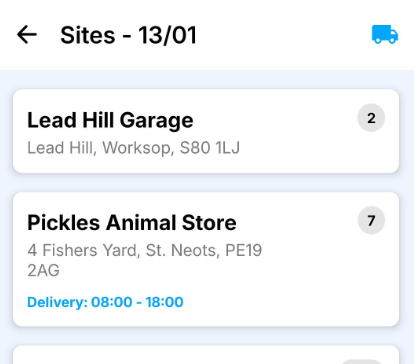
The sites for that route will be shown in the order set in Service Manager Desktop.
Tap the site you are visiting.
Tip: You can also view the van loading list for the route by pressing the blue van icon in the top right of the screen.
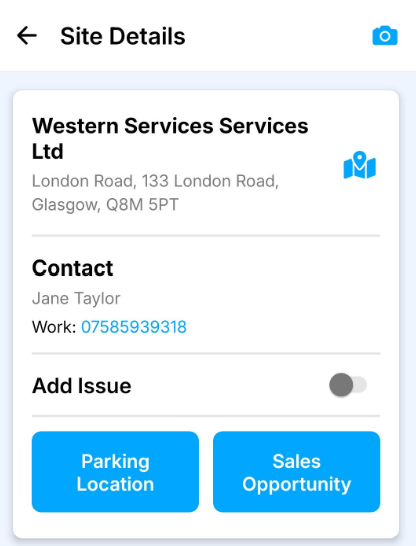
4. View Site Details
The Site Details screen shows useful information such as:
- Address
- Special instructions
- Opening hours
- Contact details
Tap Next to continue.
Tip: You can use the parking location button to update the map coordinates to your current location.

5. Check Site Totals
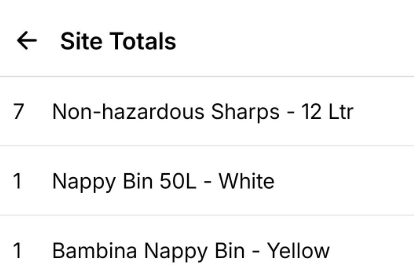
The Site Totals screen shows a summary of the items for this delivery.
Drivers often use this to confirm what needs to be taken off the van.
When ready, tap Start.
This records the start time for the delivery.
6. Action Items
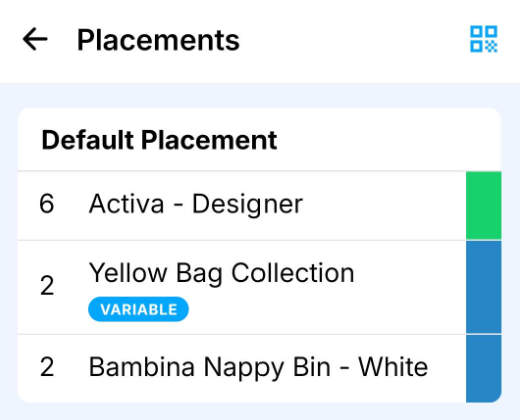
The items for the site will be displayed in placement order.
Tap an item to mark it as completed.
The coloured bar on the right of the item changes from blue to green once it has been actioned.
If everything has been delivered, you can tap Check All to mark all the remaining items in one go.
7. Capture the Signature
Once all items are completed, tap Sign at the bottom of the screen.
8. Save the Signature
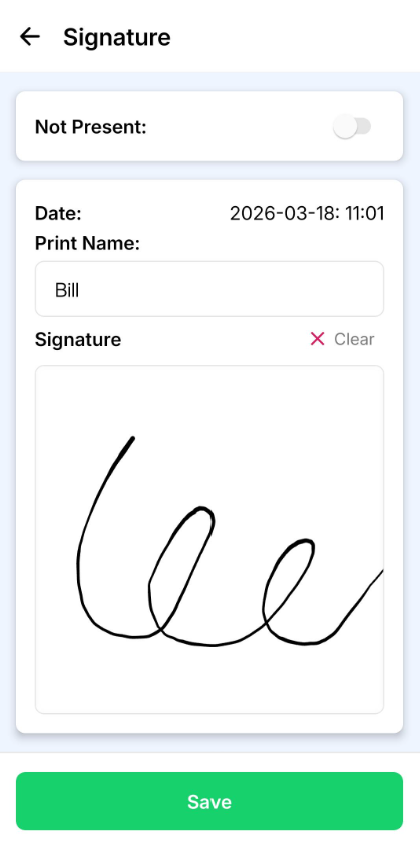
Enter the person’s name in the Print Name box and ask them to sign in the Signature box. Tap Clear to start the signature again.
If there’s nobody on site to sign, switch on Not Present instead.
After the customer has signed, you may also be asked to sign yourself.
Tap Save to complete the delivery.