
Appearance
Navigating the Service Manager App
Home Screen
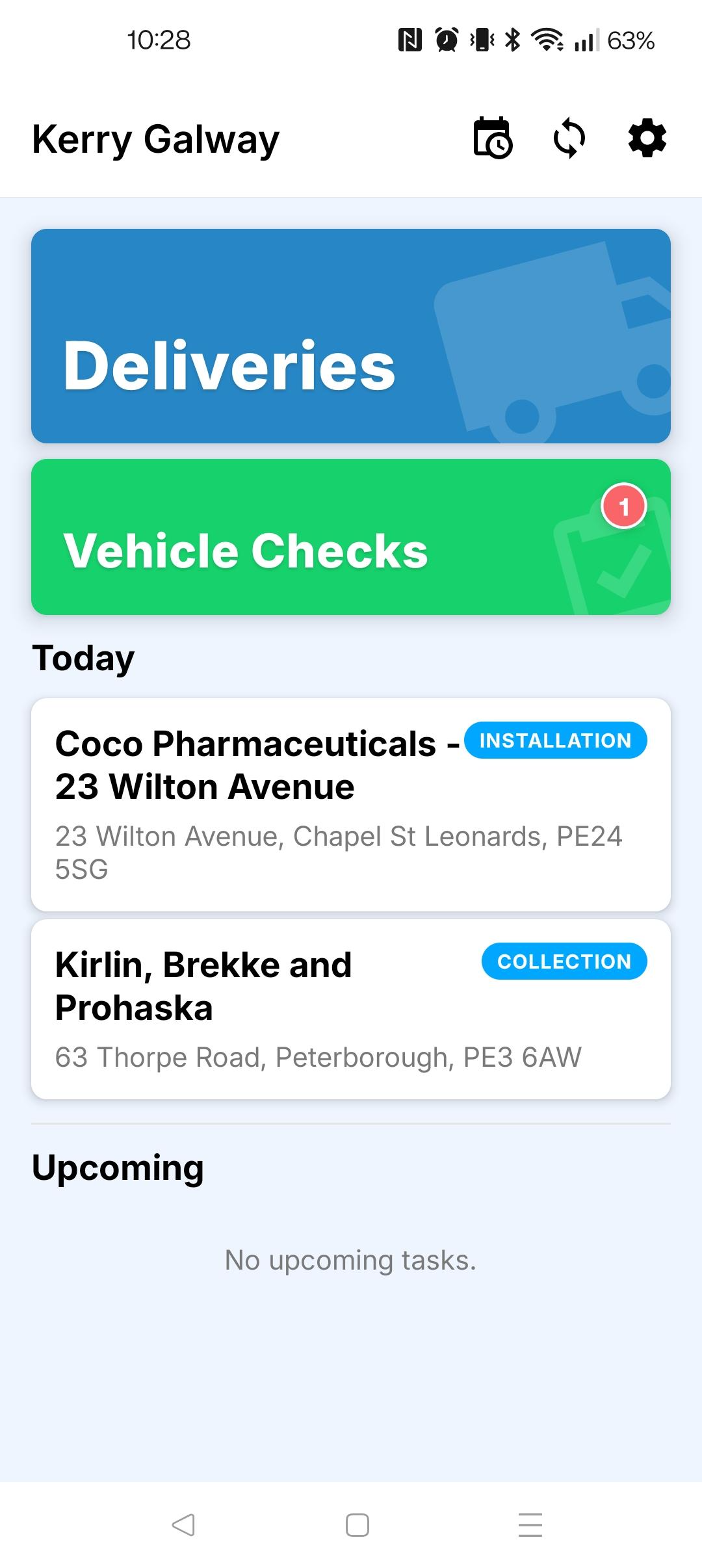
When you open the Service Manager mobile app, you will land on the Home Screen. This screen gives drivers quick access to their routes, vehicle checks, and any additional work scheduled.
Deliveries
The Deliveries button opens your list of routes.
From here, drivers can view the routes assigned to them and access the scheduled deliveries for each route.
Vehicle Checks
If vehicle checks are required, the Vehicle Checks button opens a list of checks that need to be completed.
These checks are typically used for daily vehicle safety inspections before starting work.
Today
The Today section is a visual list of additional work that is outside of the normal scheduled deliveries.
This can include:
- Installations
- Collections
- On-request deliveries
You can tap an item to view its details.
Upcoming
The Upcoming section is the same as Today, but for other days (future dated tasks).
Top Menu Icons
In the top right corner of the screen there are several quick access icons:

Timesheets
Opens timesheets where the driver can check in their start time (and other working hours, if used).
Refresh
Refreshes the app to pull in the latest information.
Settings
Opens the app settings.