
Appearance
Using the Delivery Calendar
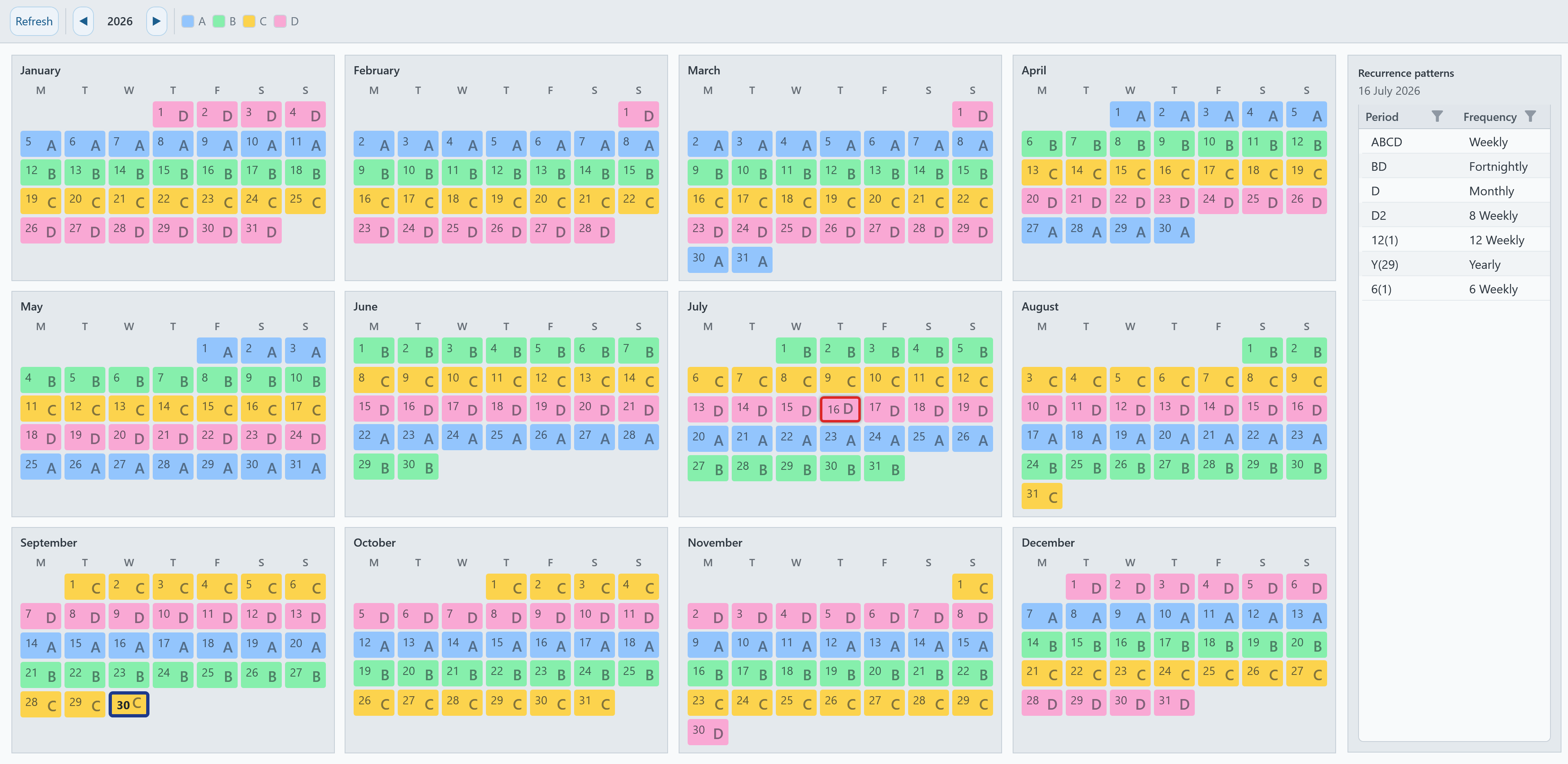
The Delivery Calendar shows a whole year on one screen. Each week is coloured by its week letter (A, B, C or D). Click a day to see every delivery period that falls on it.
Use it when you need to know when a visit will happen. For example, to check which week a new 12-weekly customer's first service will fall in, or to tell a customer when their next quarterly visit is due.
Opening the calendar
Click the current week code at the top right of the window. It looks something like A1\5(4)\6(3)\12(9)\Y(29).
You can also click File → Data, then Delivery Calendar in the Scheduling group.
The calendar opens on the current year, with today selected.
Reading the calendar
- Each day is coloured by its week letter, and the letter is shown in the corner of the day.
- Weeks run Monday to Sunday, so every day in a week has the same letter.
- Today and the day you've selected each have an outline round them.
Click a day. The Recurrence patterns list on the right shows every delivery period on that day:
- Period – the code, as it's set on a site's route, for example BD, D2 or 12(1).
- Frequency – how often it comes round, for example weekly, monthly or yearly.
Every site on one of those codes is due that week.
TIP
To choose a period for a new site, click the week you want the first visit in. Then read the code from the list. For example, if 12(1) is listed, put a 12-weekly site on 12(1) for its first visit to land that week.
Moving between years
Use the ◀ and ▶ arrows either side of the year.
If a year looks empty, its service dates haven't been created yet. See How do I create service dates for the year?
If service dates have just been created or changed, click Refresh to see them.
INFO
The calendar only shows the schedule. You can't change anything on it. To change when a site is visited, change the period on its route.